Administrator's Guide
This guide is for Jira Site Admins (and delegated admins) responsible for configuring and managing Content Retention Manager for Jira.
Warning
We recommend trying our app on a development, test, or staging tenant first to familiarize yourself with the features and capabilities. This will help make sure the app conforms to your policies and expectations.
Prerequisites
- Familiarity with Retention Statuses and Discoverability in How It Works.
- A defined company policy on data retention or information governance, which you'll use to configure policies, classifications, and rules in Content Retention Manager for Jira.
- An active Jira Cloud or Jira Service Management site.
- A user account with Jira Admin (Site-Admin) privileges, or delegated admin access granted by a Jira Admin. Jira Admin privileges are required for installation and delegation settings only. Delegated admins can configure policies, classification, and automation, and manage content.
Installation
Install Content Retention Manager for Jira from the Atlassian Marketplace onto your Jira instance. Installation requires Jira Admin privileges and cannot be performed by delegated admins.
Upgrading
Minor version updates are rolled out automatically and require no action on your part. When a new major version becomes available, you will see an in-app notification. See the Release Notes for details on new features, improvements, and bug fixes, then follow the upgrade instructions below.
To upgrade:
- In the Jira top-level menu, navigate to Apps > Manage Apps.
- Find Content Retention Manager for Jira in the list and click View app details.
- On the app details page, click Update to install the latest version.
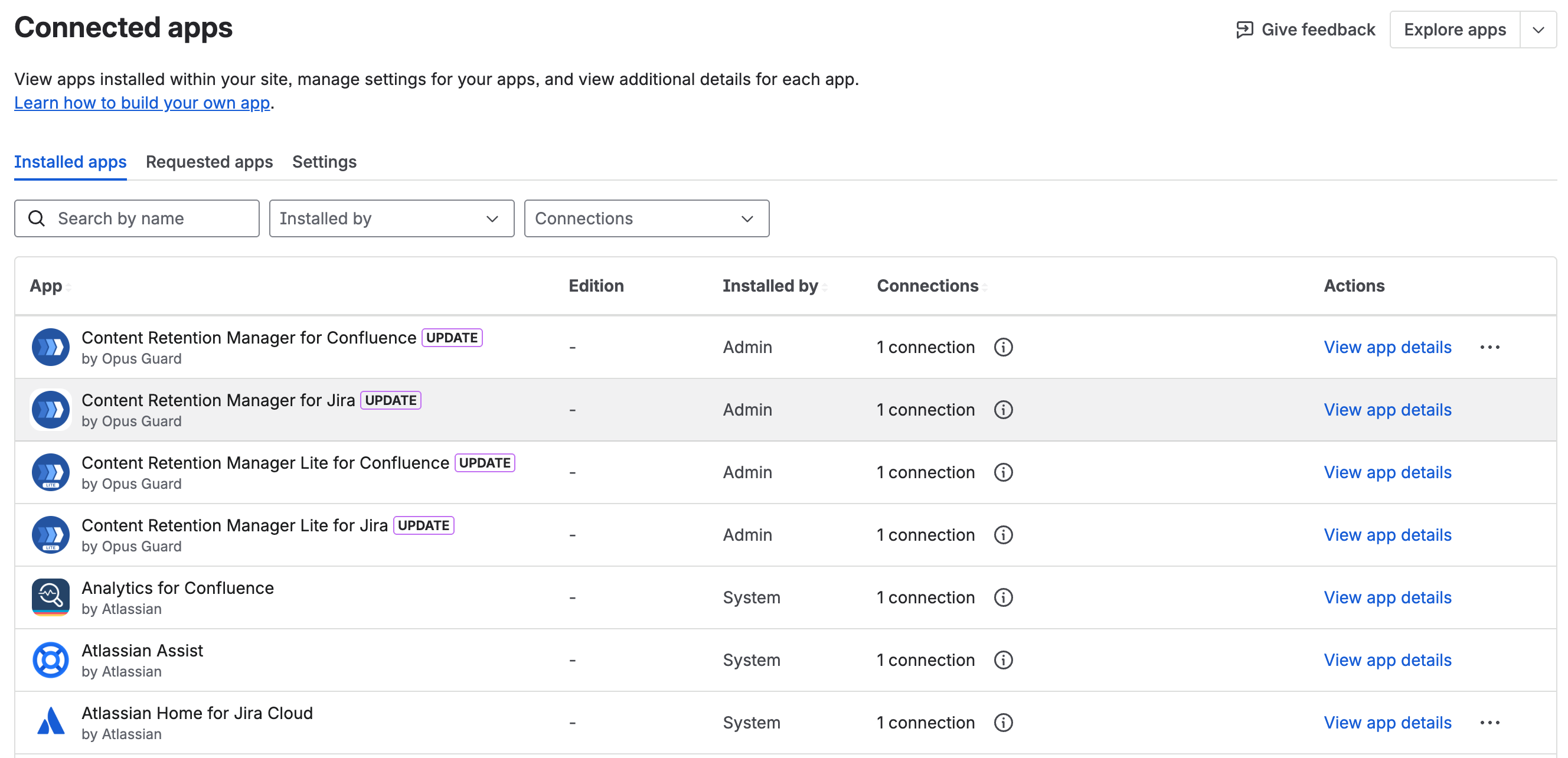
Content Retention Manager for Jira in the app list
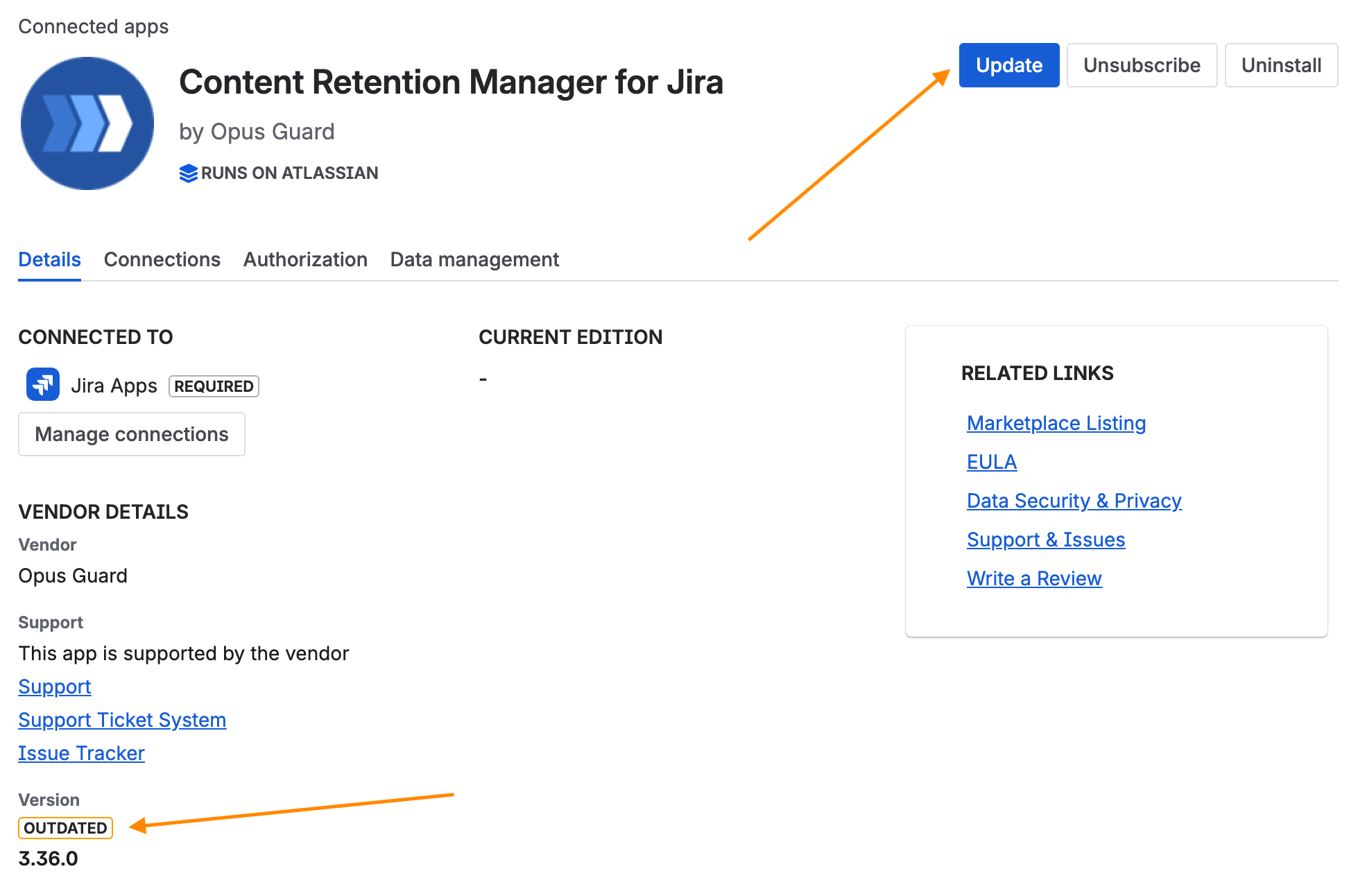
App details page with the Update button
Accessing Content Retention Manager
In the Jira left side navigation, select Apps, then select Content Retention Manager. Standard edition is available to all users; Lite edition restricts access to admins only.
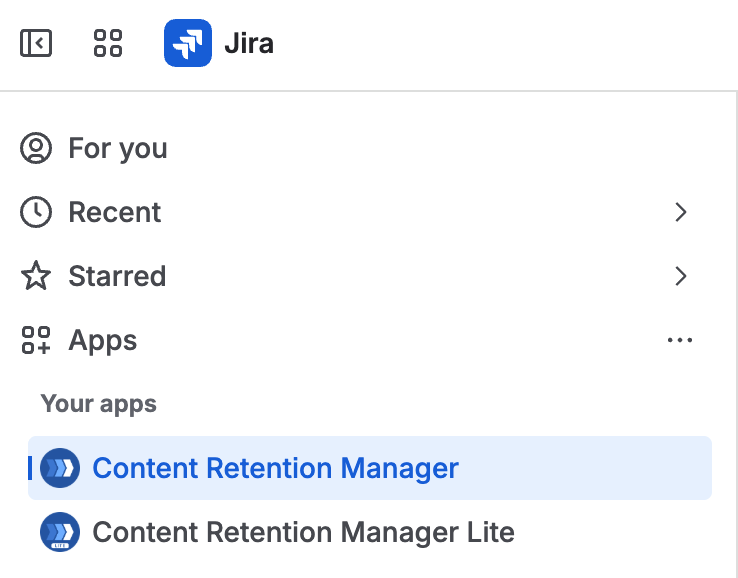
Opening Content Retention Manager from the Jira Apps menu
Dashboard
Info
Archived work items are unavailable in Lite edition. To manage them, please install and use the Standard edition of the app.
The Dashboard provides a visual summary of your content retention status in Jira. It gives administrators a quick view of retention coverage, policy distribution, classification levels, and upcoming expirations.
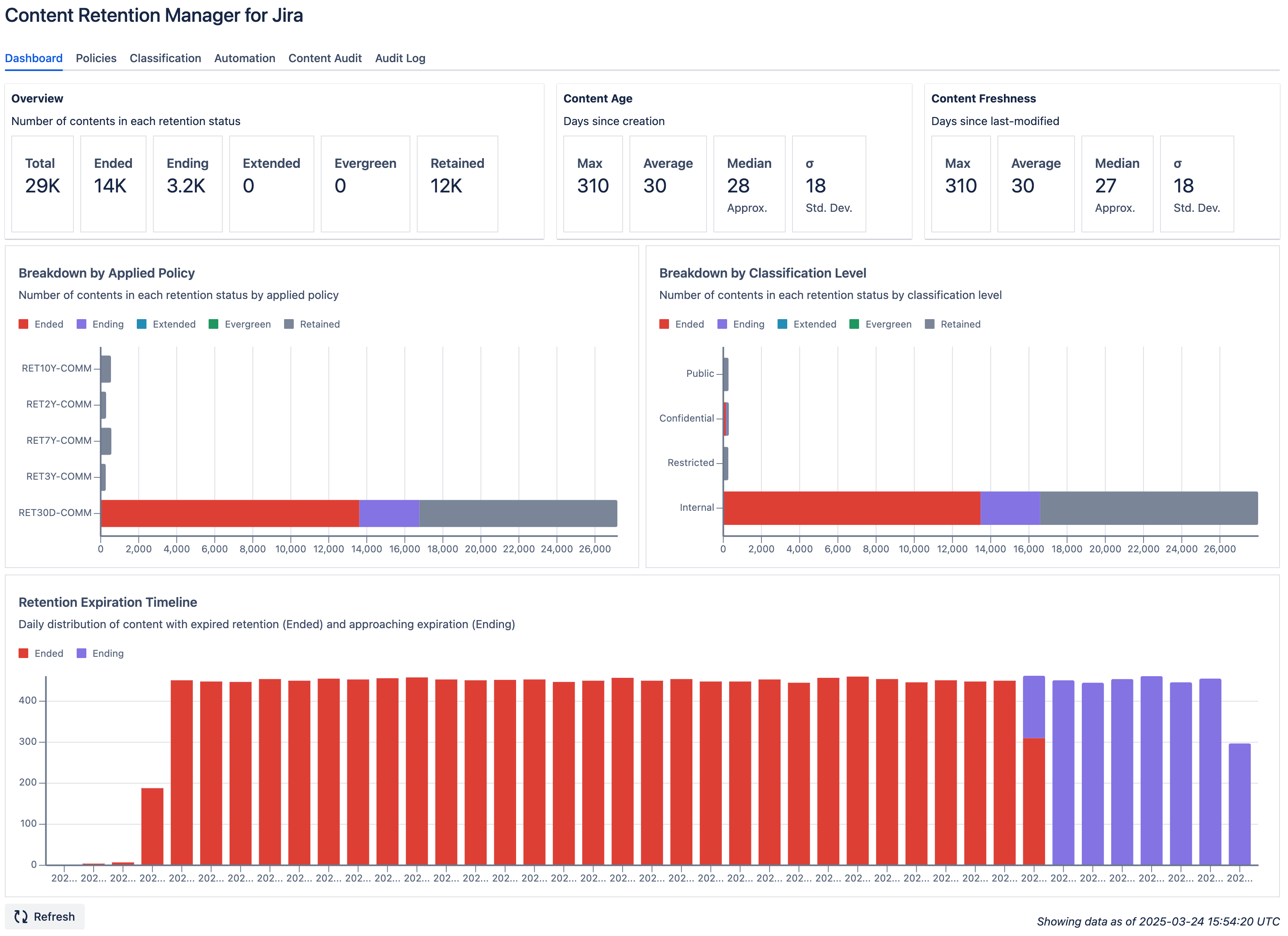
Dashboard tab in Content Retention Manager for Jira
Info
When you first visit the dashboard right after installation, it's likely that the app has not scanned the content in the background yet. In this case, you'll be prompted to refresh the stats by clicking the Sync Now button. Initial stats reflect the default policy settings. You can always manually refresh the stats on the Dashboard after you've made changes to the policies (see Setting Up Retention Policies).
On the Dashboard, there are a few tiles providing high-level stats for the content:
- Overview: The total number of content items on the Jira site, and the count in each retention status.
- Content Age: Time since content creation (Max, Average, Median, Standard Deviation).
- Content Freshness: Time since last modification (Max, Average, Median, Standard Deviation).
- Automation: The number of archive and purge operations performed over the last 30 days (UTC).
The Dashboard also includes four charts:
- Breakdown by Applied Policy: This chart shows content grouped by applied retention policies (e.g., RET10Y-COMM, RET30D-COMM) and color-coded by retention status (Ended, Ending, Retained, etc.). Use it to see how policies are distributed and which have the most expired or active content.
- Breakdown by Classification Level: This chart organizes content by classification level (e.g., Internal, Confidential, Restricted, Public) and highlights the retention status of each group. It's especially useful for verifying retention compliance for sensitive content.
- Retention Expiration Trends: This chart shows the daily breakdown of content with expired retention (Ended, in red) and content nearing expiration (Ending, in orange). Use it to monitor upcoming retention events and plan follow-up actions. This chart is only shown when there is content in Ending or Ended status.
- Daily Automation Activity: This chart shows the number of automation operations (archive and purge) performed each day over the last 30 days. Use it to verify that automated retention is running as expected and to spot any unusual spikes in activity. This chart is only shown when there has been automation activity in the last 30 days.
Chart segments are clickable: a segment on the policy, classification, or expiration-trend charts opens Content Audit with the matching filter applied, and a segment on Daily Automation Activity opens the Audit Log with a matching search.
Dashboard data is typically updated daily through an automatic scan of all content. To trigger a manual scan, click the Sync Now button at the bottom left. A scan can take some time to complete on large instances. The timestamp at the bottom right shows when the most recent data snapshot was taken.
Setting Up Retention Policies
Warning
Leave Automation turned off for now. We'll enable that later.
We recommend auditing your content after configuring retention policies. Enabling automation at this stage may result in the irreversible purging of expired content from your instance.
Retention policies are the primary tool for managing content in Content Retention Manager for Jira. As an admin, you define policies in the Policies tab, set a global default, and create retention rules that apply specific policies to individual users, groups, spaces, or classification levels. Once your policies are in place, you can scan and report on all content. When you're confident the results are correct, optionally enable automation to enforce them.
The Policies tab has four sections:
| Section | Purpose |
|---|---|
| Default Retention | The site-wide retention policy applied to content not covered by any rule. |
| Retention Rules | Rules that apply a specific policy to individual users, groups, spaces, or classification levels. |
| Policies | The library of policy definitions used by the default retention setting and retention rules. Each policy specifies a retention period and a warning period. |
| User Permissions | Controls whether non-admin users can view the policy code applied to their content, and independently, whether they can view which rule produced it (its source). This applies when users access the app from the Apps menu. See Accessing Content Retention Manager for details on non-admin access. |
Configure each section as needed and click Save to apply your changes. Use Export and Import to back up and restore your policy configuration. This is especially useful when migrating from Lite to Standard edition or copying your setup to another site.
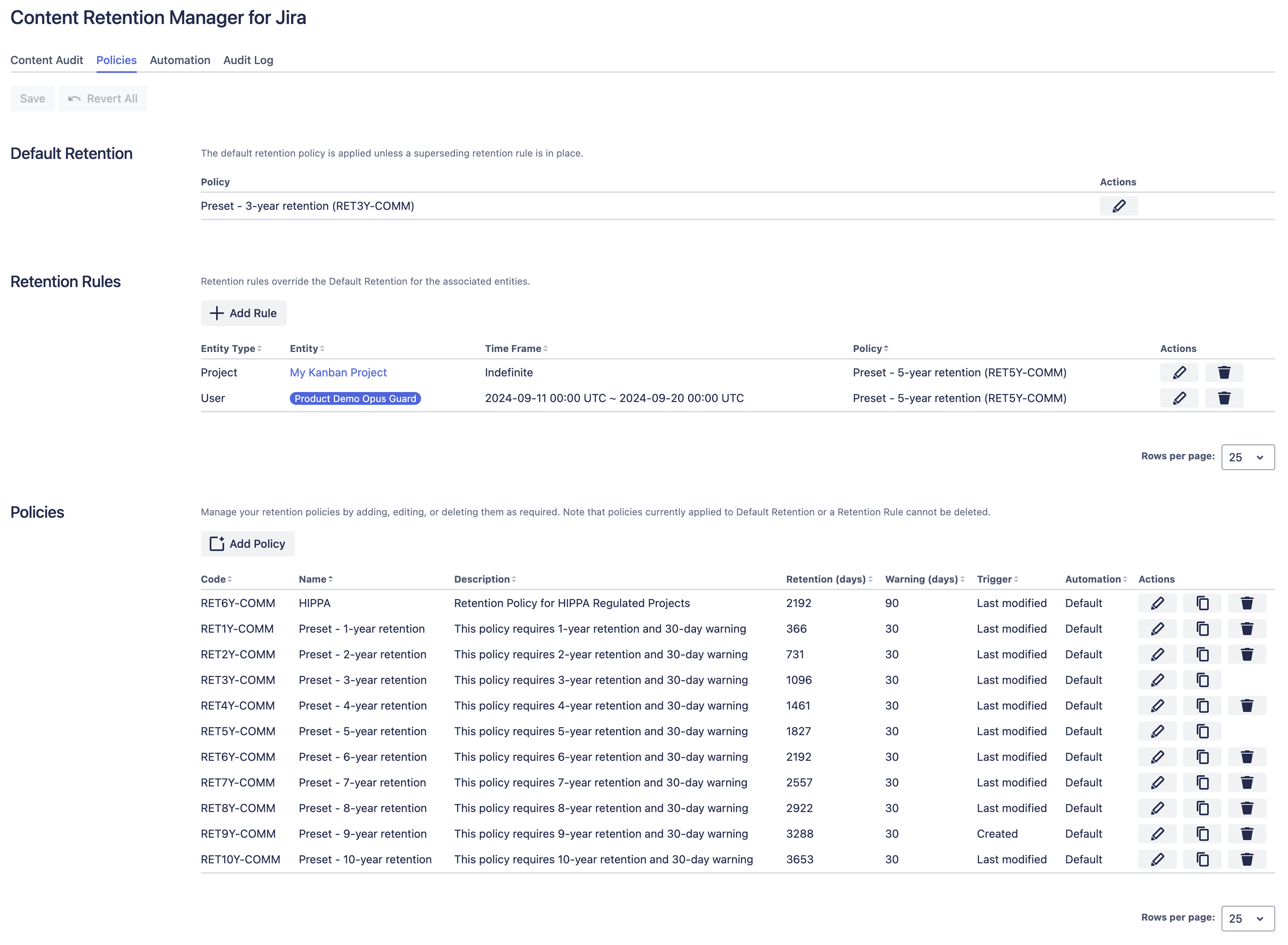
Policies tab in Content Retention Manager for Jira
Adding a Policy
- Click the Add Policy button in the Policies section.
- In the Add Policy dialog, enter a Code (unique identifier), a Name, and a Description for the policy.
- In the Trigger dropdown, select when the retention period should begin, such as when the content was last modified or created.
- In the Retention (days) field, enter how many days to retain the content.
- In the Warning (days) field, enter the number of days before the retention period ends to flag content as Ending status.
- Select the Automation setting: Default applies the global automation settings; Disabled excludes content under this policy from automation. See Retention Enforcement for details on configuring the global settings.
- Optionally, set a Purge Delay (days) to override the global purge delay configured in Retention Enforcement. This is the number of days after the retention period ends before content is permanently purged. Leave blank to use the global purge delay.
- Click Apply to add the policy.
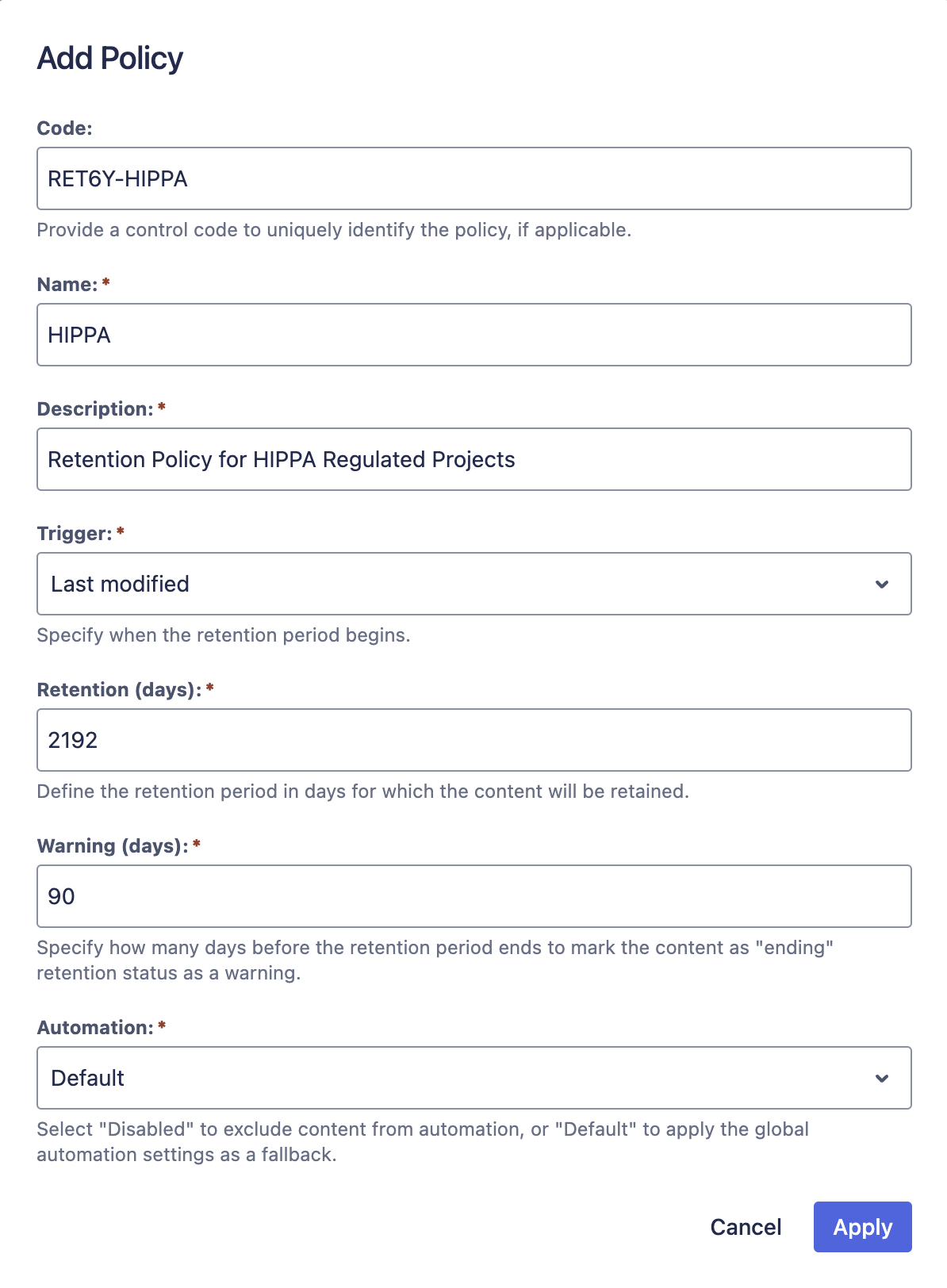
Example Retention Policy
Adding a Rule
Retention Rules override the default retention policy for specific entities. Instead of one policy for your entire Jira site, rules let you set different retention periods for individual users, groups, spaces, or classification levels.
Each entity type has a distinct use case:
- User: Applies to content created by a specific user. User rules are well-suited for e-discovery and legal hold scenarios. If a user is under investigation or has left the organization, you can assign a longer or indefinite retention to all content they touched, preserving it for legal review without changing the default policy for anyone else.
- Group: Applies to all members of a Jira group. Use this for department-wide retention, such as retaining Legal team content longer than the default or applying a shorter policy to contractor groups.
- Jira Space: Applies to all content within a specific Jira space. Use this when a space has its own compliance requirements that differ from the site-wide default, such as a regulated product development space.
- Classification Level: Applies based on how content is classified. Use this to match retention periods to data sensitivity, such as retaining Confidential content for 10 years and Public content for 1 year.
Important
If content matches multiple rules, the following override order applies:
- User and Group rules take precedence together, then
- Classification Level rules, then
- Jira Space rules, then
- Default Retention if no rules match
When content matches multiple User or Group rules, the rule with the longest retention period applies.
To add a rule:
- Click the Add Rule button in the Retention Rules section.
- In the Add Rule dialog, select an entity type: User, Group, Jira Space, or Classification Level.
- Search for and select the specific entities the rule should apply to.
- In the Policy Definition dropdown, select the retention policy to apply. This overrides the default retention policy for any content that matches the rule.
- To limit the rule to a specific date range, toggle Apply to a time frame and set the start and end dates. Content matches if its creation date or last-modified date falls within the range.
- Click Apply to save the rule.
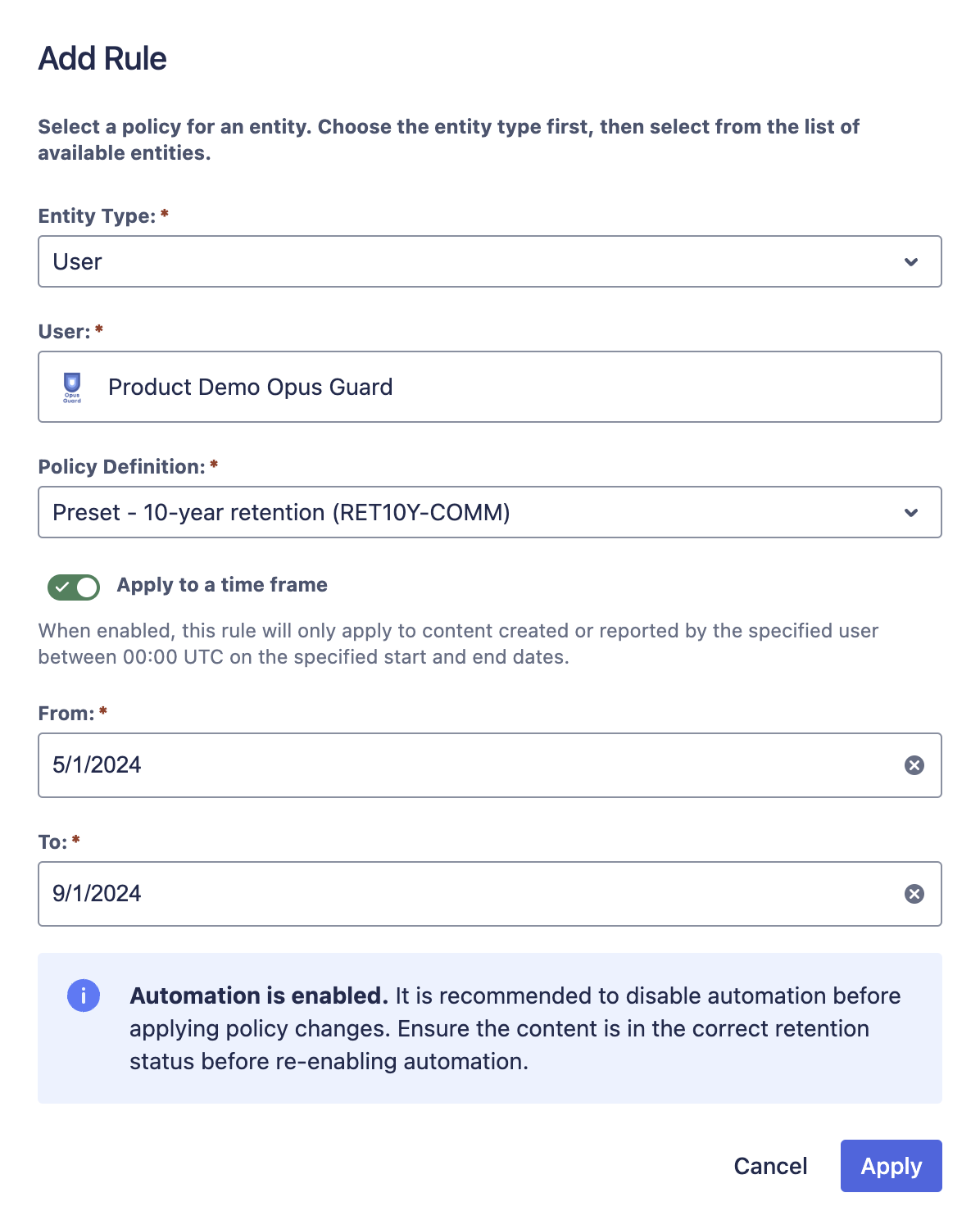
Example User Retention Rule
Setting Up Classification
Classification lets you categorize content in Jira by sensitivity level. Configure classification on the Classification tab, where you define the available levels, set a global default, and create rules that assign default levels to specific entities such as spaces. Users with edit permission on a work item can also view and set classification levels directly on their content, giving them a way to override the space or global default when needed.
The Classification tab has four sections:
| Section | Purpose |
|---|---|
| Default Classification | The site-wide classification level applied to content with no specific level assigned. |
| Classification Rules | Rules that assign a default classification level to specific entities such as spaces. |
| Classification Levels | Where you define and manage the classification levels available in your instance. Levels are displayed to users in rank order, with lower numbers indicating higher sensitivity. |
| User Permissions | Controls whether non-admin users can view and set classification levels on their content. See Per-Content Classification for details. |
Configure each section as needed and click Save to apply your changes. Use Export and Import to back up and restore your classification configuration. This is especially useful when migrating from Lite to Standard edition or copying your setup to another site.
Wherever a classification level appears throughout the app, its color icon is shown alongside the name; a lock badge on the icon indicates non-admin users are restricted from assigning it, unassigning it, or both (see Adding a Classification Level).
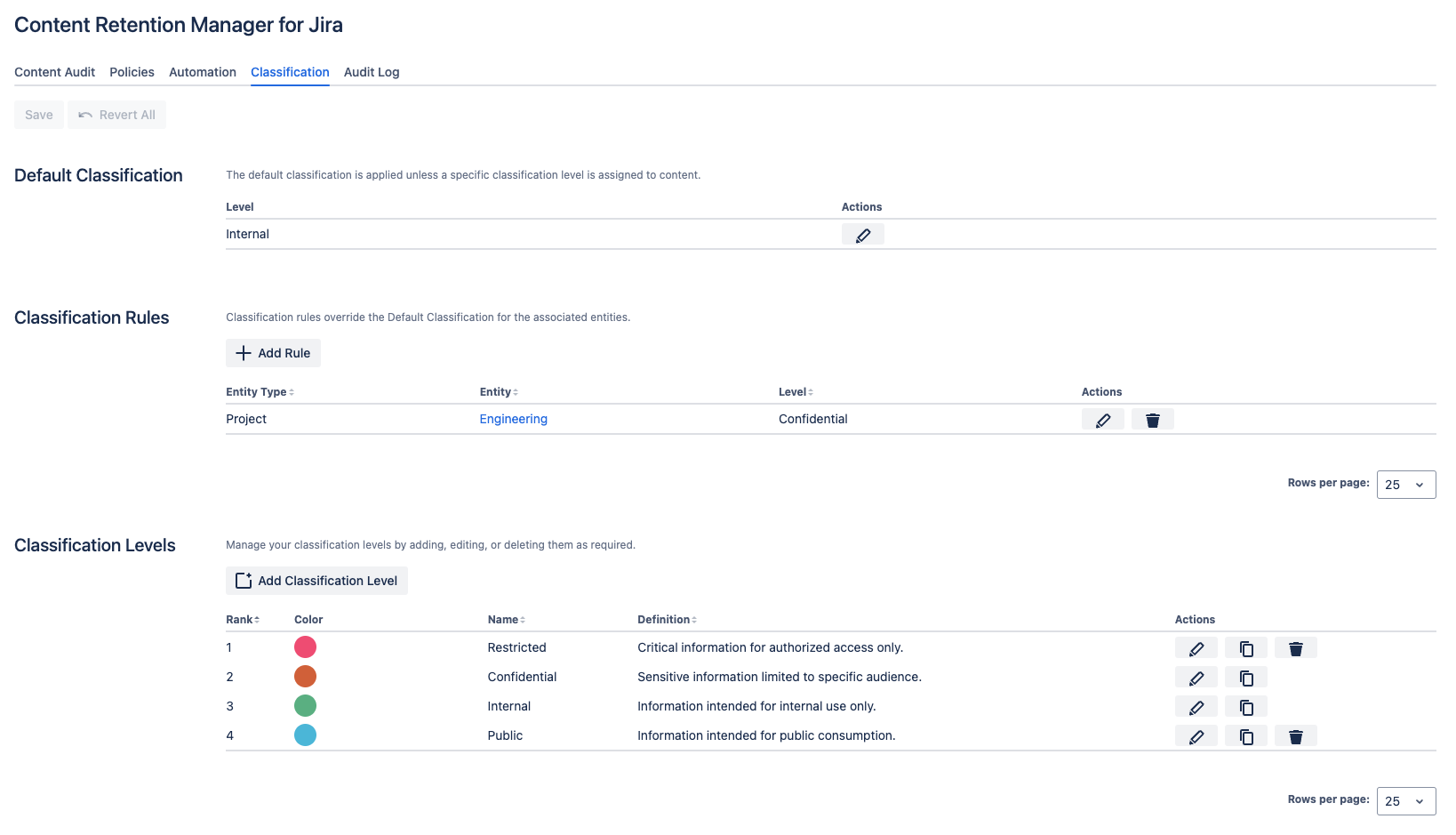
Classification tab in Content Retention Manager for Jira
Adding a Classification Level
- Click Add Classification Level in the Classification Levels section.
- In the Add Classification Level dialog, enter a unique and descriptive name for the new level. In the Definition field, enter the purpose and scope of the classification.
- Choose a Color to represent the level's sensitivity.
- Choose a Rank for the classification level. Lower numbers indicate higher sensitivity, with rank 1 being the most sensitive.
- Under Restrictions, choose whether non-admin users can assign this level to their content, unassign it (revert to a different level or the inherited default), or both. Both are enabled by default; turning either off shows a lock badge on the level's icon everywhere it appears in the app. This applies independently of the global Allow users to set classification levels toggle. See Per-Content Classification.
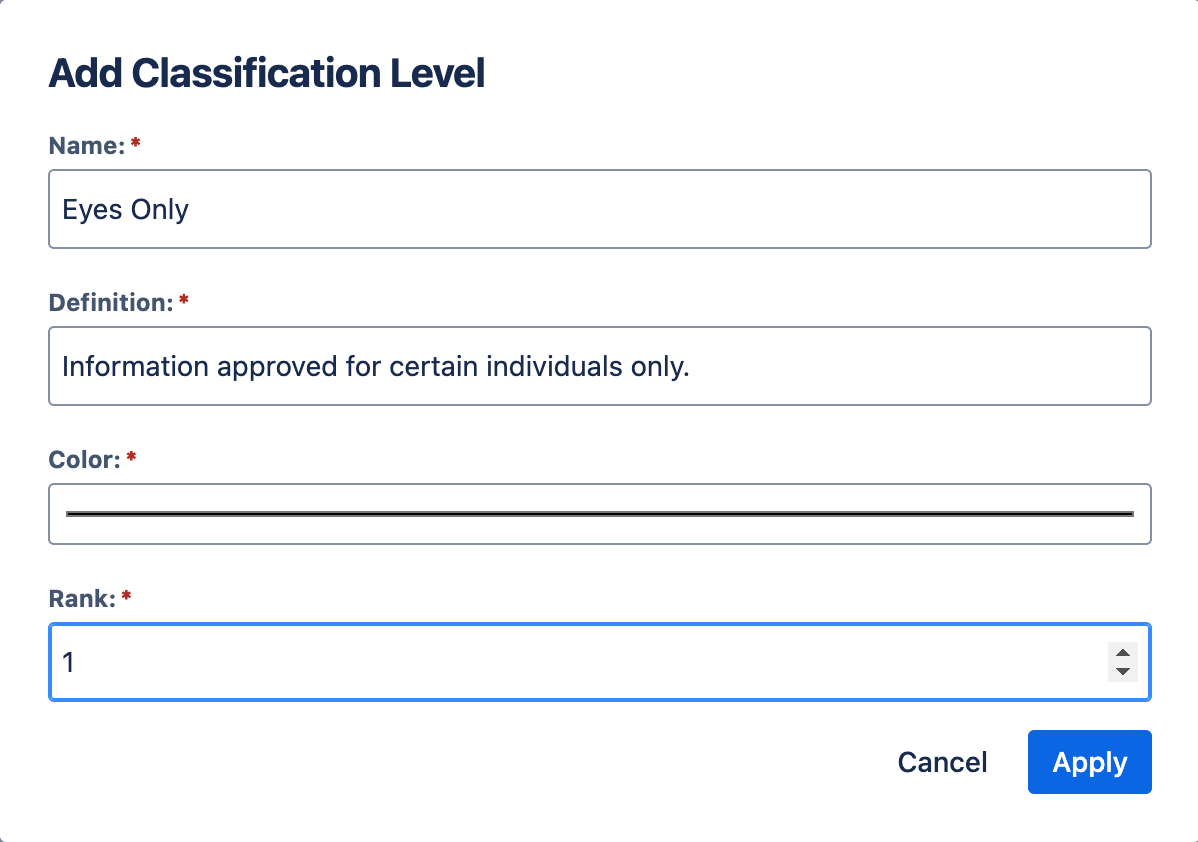
Adding a Classification Level
Adding a Classification Rule
- Click the Add Rule button in the Classification Rules section.
- In the Add Rule dialog, select an entity type, then search for and select the entities the rule should apply to.
- In the Classification Level dropdown, select the classification level to assign. This overrides the default classification for matching content.
- Click Apply to add the rule.
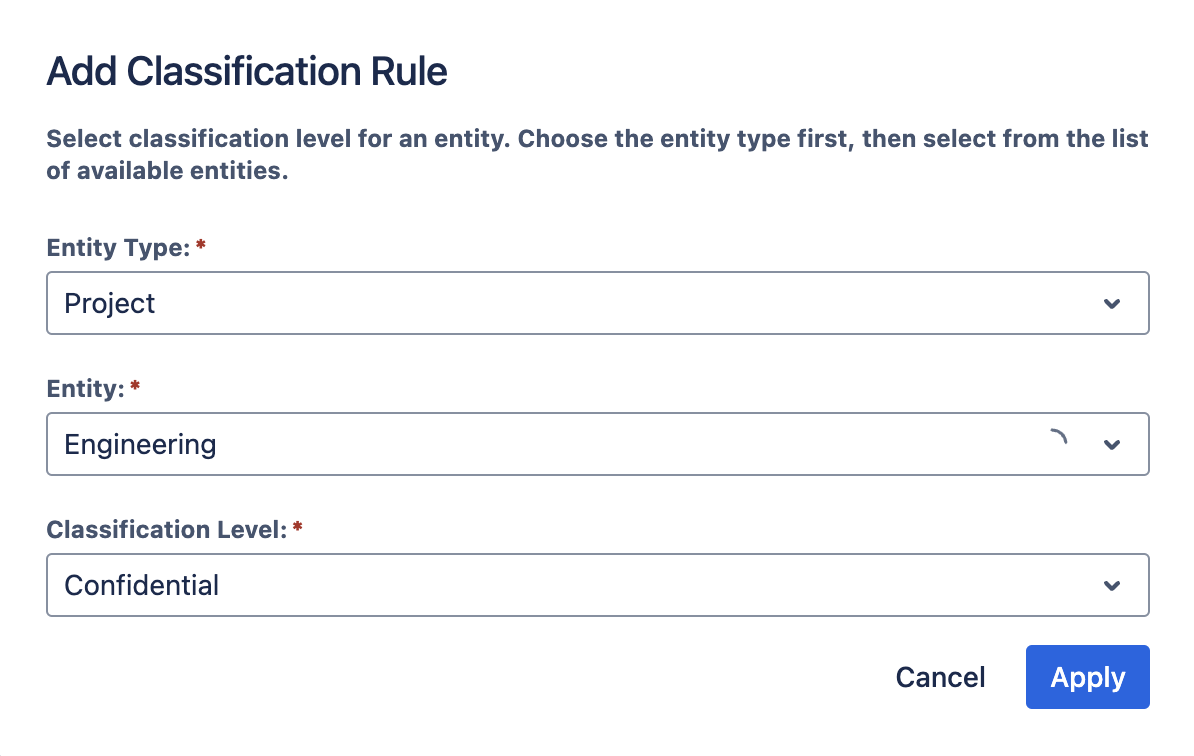
Adding a Classification Rule to a Jira Space
Per-Content Classification
This feature is not available in Lite edition of the app.
The User Permissions section on the Classification tab controls whether non-admin users can interact with classification levels on their content:
- Allow users to view classification levels: users can see the classification level applied to content they have read access to.
- Allow users to set classification levels: users with edit access can set a per-content override directly on a work item, overriding any classification rule or global default for that item.
Even when this global toggle is on, each individual level's own Restrictions (set when adding the level) can still exclude non-admin users from assigning that specific level, unassigning it, or both, independently of every other level. Admins are never affected by a level's restrictions.
See the User's Guide for the end-user workflow, including how to open the Work Item Panel and restore the inherited classification level.
Label Migration
This feature is not available in Lite edition of the app.
If your space already uses Jira labels to indicate sensitivity, the Label Migration tool lets you convert that existing labeling scheme into classification levels in bulk, instead of classifying work items one at a time.
- In the Classification tab, click Open Migration Tool.
- In the mapping table, map each label to the classification level it should apply. The Count column shows an approximate number of work items carrying that label, linking to the label's search results in Jira.
- Click Start Migration to run the migration. Content matching a mapped label is reclassified to that label's level; where a work item carries more than one mapped label, the most restrictive level wins.
- Track progress as the job scans your content. Once running, a per-label breakdown shows how many items matched, were reclassified, or were skipped for each label, with notes explaining any skips. Progress updates roughly every 5 seconds while the migration is running.
- Click Cancel Migration at any point to stop the job early.
Archived work items aren't covered by migration.
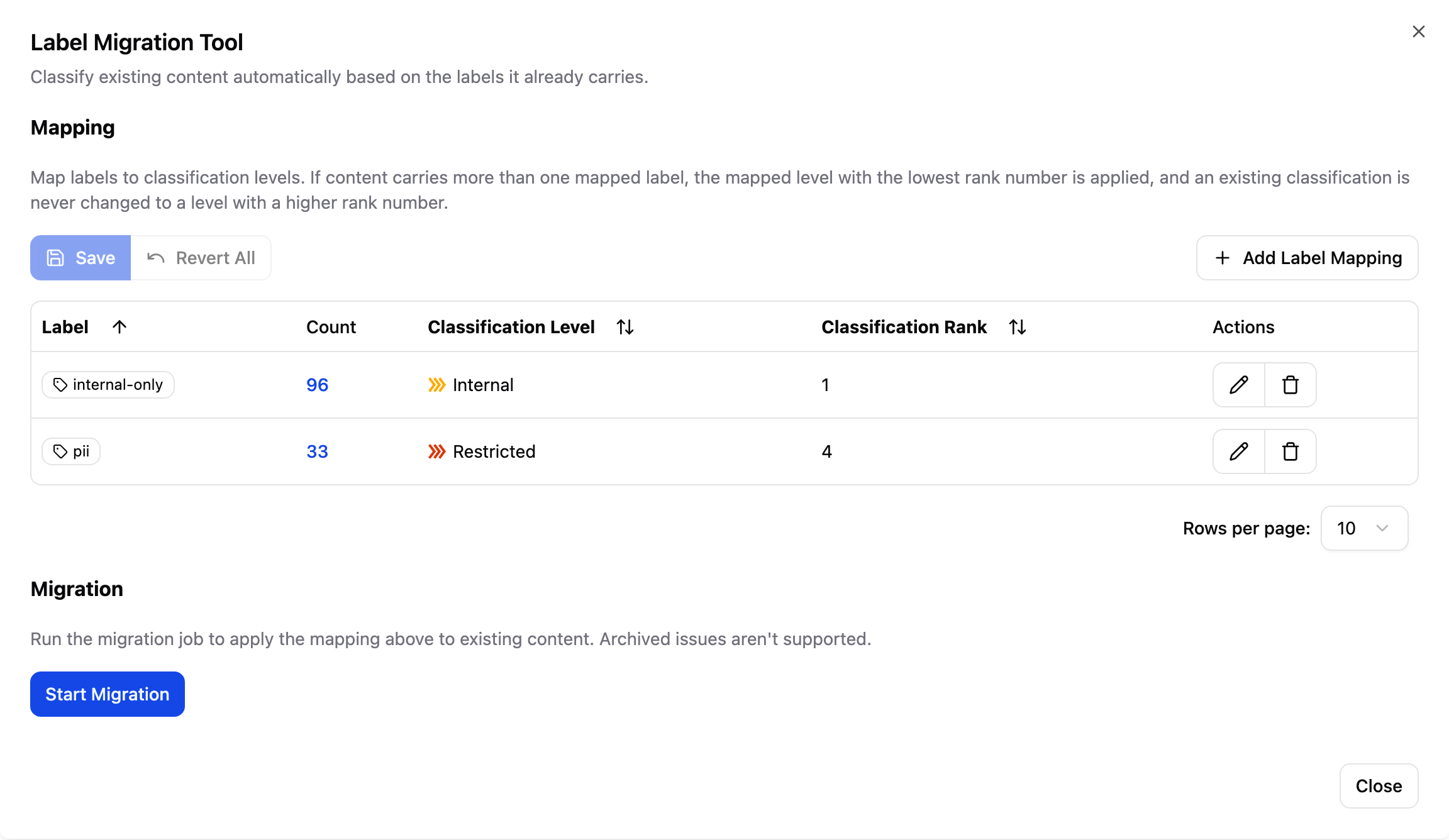
Label Migration Tool dialog with mapped labels and progress
Content Flags
This feature is not available in Lite edition of the app.
A flag marks content that needs attention, such as removal, an update, or another review. The people who know the content best can raise a flag in one action, so stale content surfaces without admins hunting for it. Flagging is advisory. It never deletes work items, and it never changes how a retention policy or extension applies to them. Flagged content appears in the Content Audit tab, where you decide what to do with it. See Reviewing Flagged Content.
Configure flags on the Flags tab, which sits after Classification. The tab has two sections:
| Section | Purpose |
|---|---|
| Flags | The flags users can choose from. Each flag has a name, a description, and a color. |
| User Permissions | Controls whether non-admin users can view, remove, and set flags. |
Configure each section as needed and click Save to apply your changes, or Revert All to discard them.
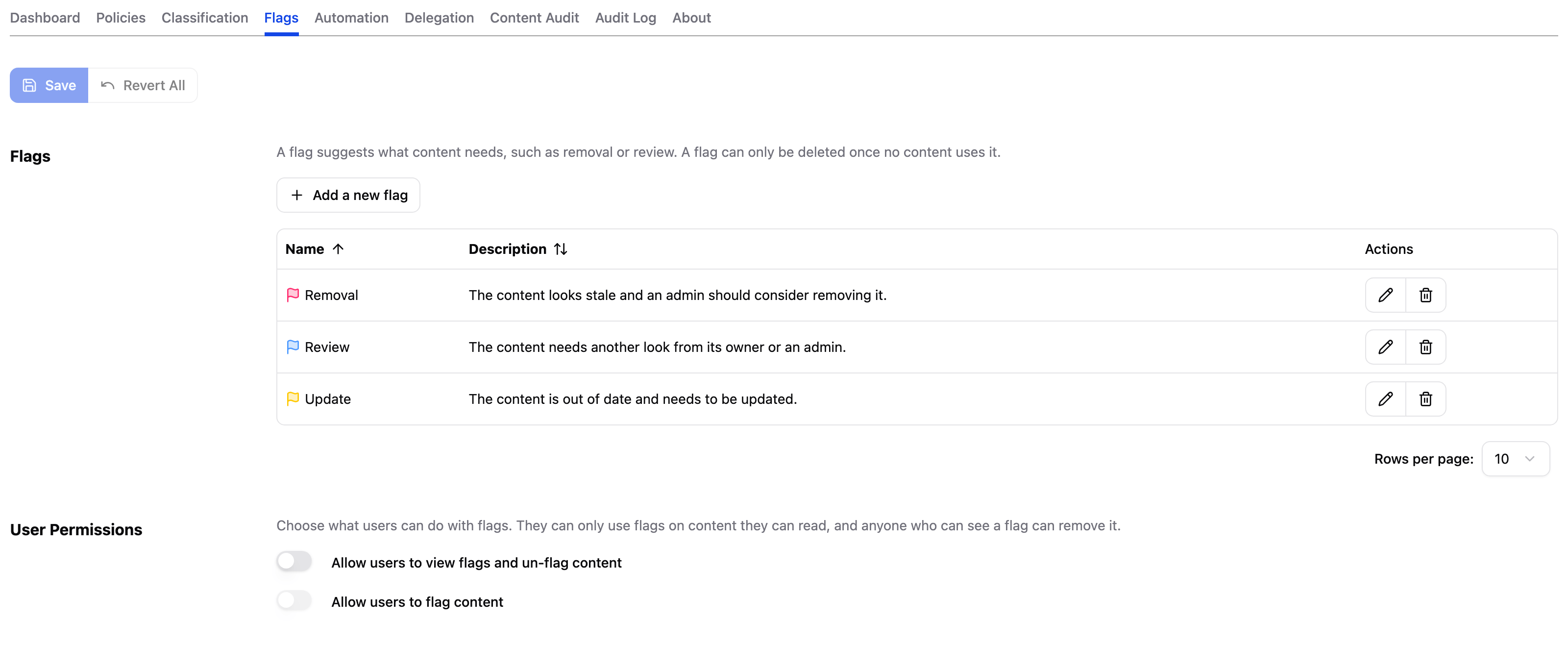
Flags tab in Content Retention Manager for Jira
Adding and Editing Flags
New installations start with three flags: Removal, Update, and Review. You can edit or delete these and add more, up to 10 flags in total.
- In the Flags section, click Add a new flag.
- In the Add Flag dialog, enter a unique name of up to 100 characters. The app rejects a name another flag already uses, ignoring capitalization. Choose names that are clearly different from each other, so users know which flag to pick.
- Enter a description of up to 500 characters that explains when and why to use the flag. Users see this text when they choose a flag.
- Choose a Color. The flag's icon uses this color wherever it appears in the app.
- Click Apply, then click Save.
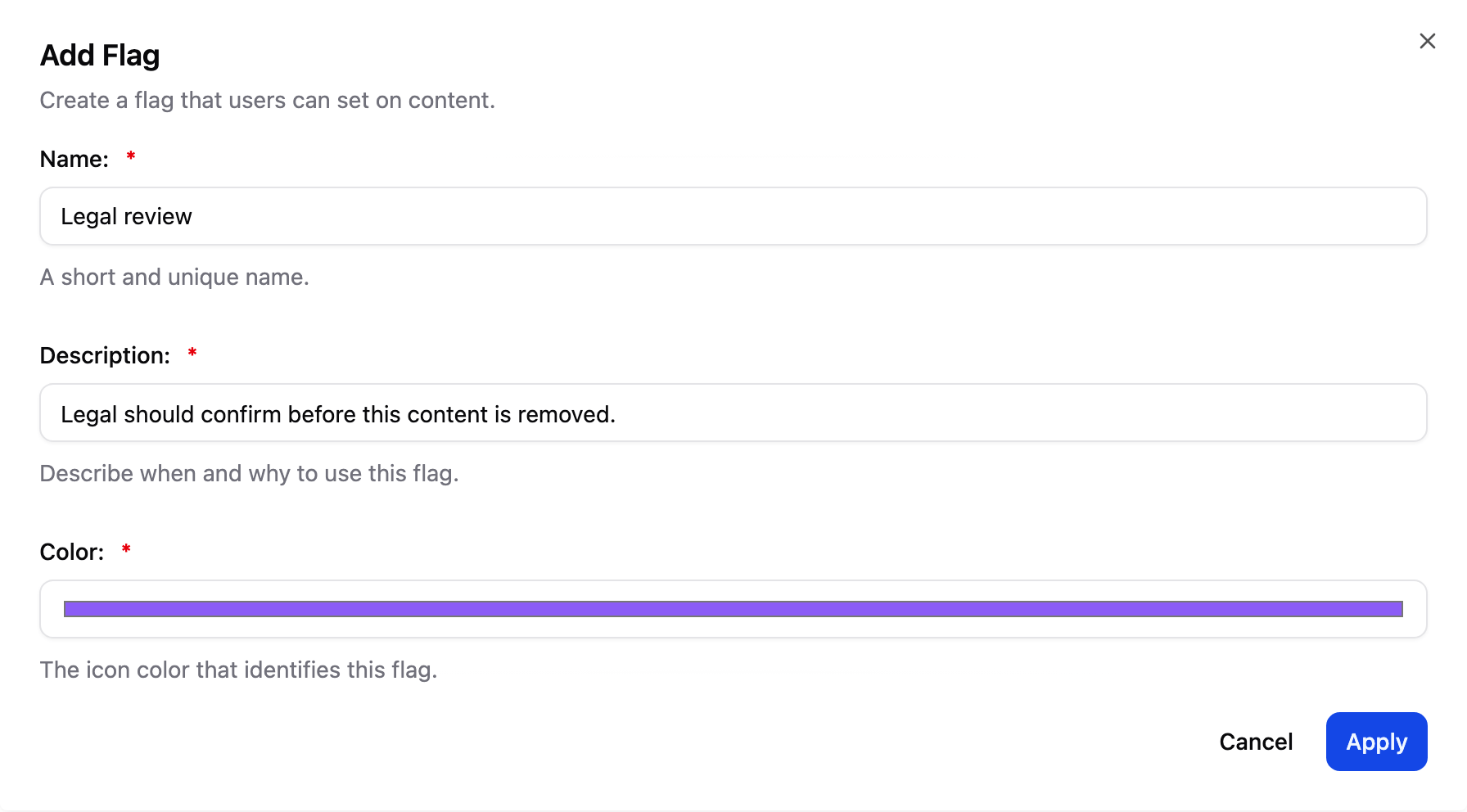
Adding a Flag
Use the edit and delete buttons in the table to change or remove a flag. Renaming a flag changes how it reads on every flagged work item and doesn't change which content carries it. You can delete a flag only while no content carries it. To retire a flag that's in use, rename it, or remove it from each work item first, because there is no bulk way to remove flags.
Choosing Who Can Flag Content
The User Permissions section has two switches. Both are off by default, so only admins can use flags until you turn them on.
- Allow users to view flags and un-flag content: users can see flags on content they can read, and can remove any flag they can see.
- Allow users to flag content: users can set a flag on content they can read. This switch is available only while the first one is on, so nobody can set a flag they can't see and clear.
Admins can always view, set, and remove flags. Everyone, admins included, can only use flags on content they can read. Changing these switches doesn't affect flags that already exist. See the User's Guide for the end-user workflow.
Clearing Flags
Anyone who can see a flag can remove it, and admins always can. Users remove a flag from the Flag card in the panel, as described in the User's Guide.
Automatic Flag Clearing
A flag also clears by itself when someone edits the work item after it was flagged, because an edit shows that someone still maintains it. Changes that don't touch the content itself, such as metadata updates, leave the flag in place. The check runs in the background, so a flag can take up to 24 hours to clear after the edit.
Every flag event is recorded in the Audit Log: setting, changing, or removing a flag, adding or changing a reason, and an automatic clear after an edit. The log doesn't record the text of a reason.
Auditing Your Content
Info
Archived work items are unavailable in Lite edition. To manage them, please install and use the Standard edition of the app.
Use the Content Audit tab to review all content and its retention status, apply extensions or classifications, and take action on individual or multiple items. The sections below describe the table layout and available actions.
The summary row above the table breaks down your content by retention status. Click any count to filter the table to just that status.
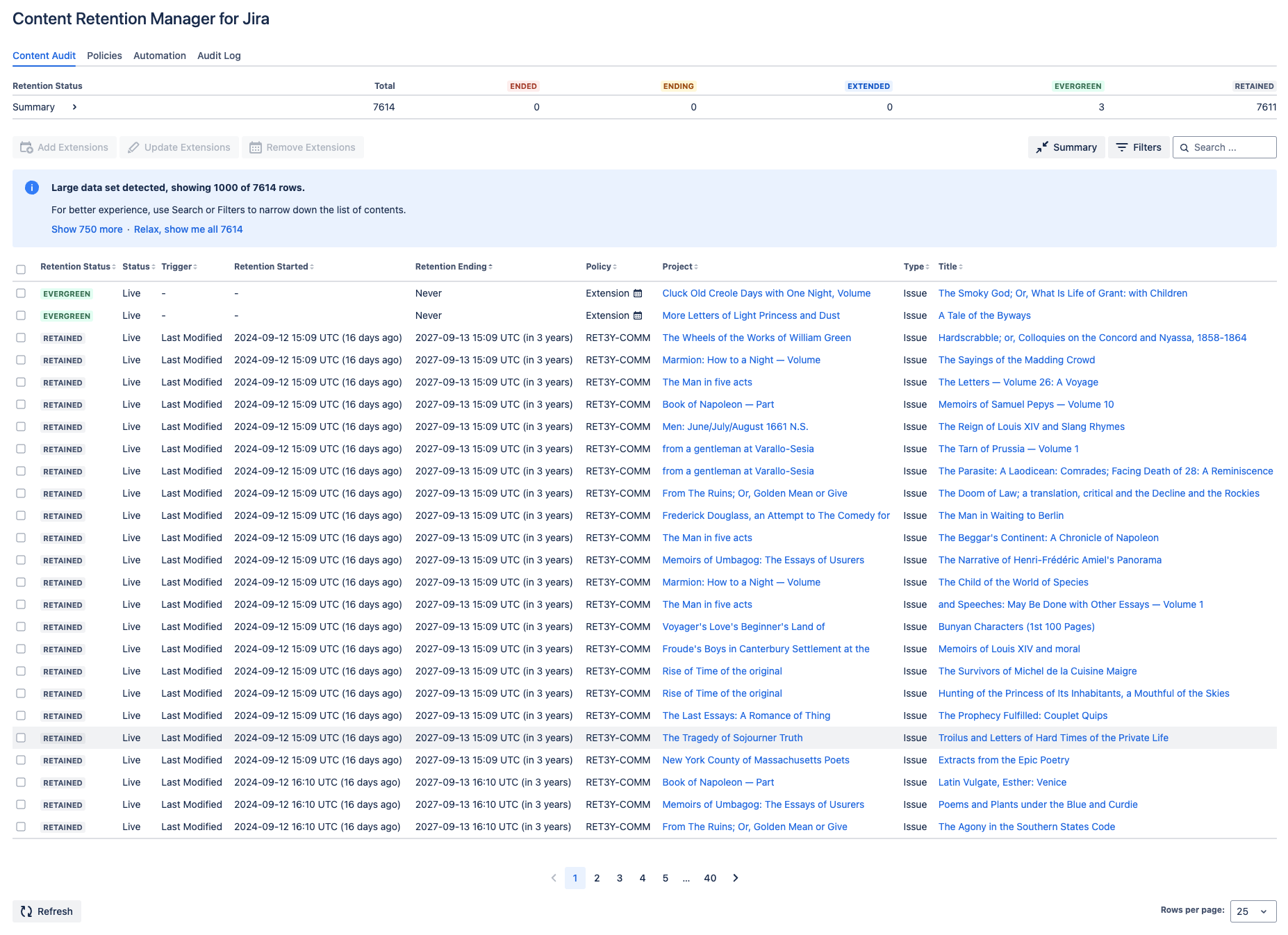
Content Audit tab in Content Retention Manager for Jira
Discoverability and Legal Liability
Content in Jira has the following status levels. For legal and compliance purposes, content is considered discoverable any time anyone, including an admin, can access or recover it.
| Content Status | Visibility | Discoverable |
|---|---|---|
| Live |  Anyone with access can view Anyone with access can view |
Yes |
| Archived | Accessible via direct links to anyone with read access |
Yes |
| Purged |  No longer visible or recoverable. Any trace of the content is removed. No longer visible or recoverable. Any trace of the content is removed. |
No |
Archiving content is not enough. As long as someone can access a work item in Jira, that content remains discoverable for legal and compliance purposes. Actively maintain a policy that accounts for what should and should not be discoverable, in consultation with your Legal, CISO, and HR teams.
Understanding the Content Audit Table
The Content Audit table lists every work item you have access to. The columns are organized into three groups: retention, classification, and details.
Retention
| Column | Description |
|---|---|
| Retention Status | Where the item sits in its retention lifecycle: Retained, Ending, Ended, Extended, or Evergreen. See Retention Statuses and Discoverability for definitions. |
| Status | The current visibility state of the content: Live (accessible and discoverable) or Archived (accessible via direct links). Purged content no longer appears in the audit table. |
| Trigger | When the retention clock started, such as Last Modified or Created. This is set when you create a policy. |
| Retention Started | The date the retention period began, based on the Trigger value. Shown with a relative time (e.g., "6 months ago"). |
| Retention Ending | The calculated expiration date: Retention Started plus the Retention (days) from the applied policy. Shown with a relative time (e.g., "in 2 years"). |
| Policy | The retention policy code governing the item (e.g., RET3Y-COMM), with an icon next to it when a per-content extension, like Evergreen, is affecting the item's retention behavior. Admins can control whether this column is visible to non-admin users in the User Permissions section of the Policies tab. |
| Policy Source | Which rule produced the applied policy: Default (site-wide default), Space, Classification, User, or Group. If the item has an active extension, this column shows Extended or Evergreen instead. Admins can control whether this column is visible to non-admin users independently of the Policy column, in the User Permissions section of the Policies tab. |
Classification
| Column | Description |
|---|---|
| Classification Level | The sensitivity level currently applied to the item, with an icon indicating its color; a lock badge on the icon means non-admin users are restricted from assigning it, unassigning it, or both. |
| Classification Source | How the classification level was assigned: Rules (from a classification rule) or User (set by a user with edit access on the work item). In Lite edition, per-content classification is not supported, so all content will show Rules as the source. |
Details
| Column | Description |
|---|---|
| Flag | The flag set on the work item, shown as a colored icon. Hover over the icon for the flag's name, reason, who flagged the content, and when. Hidden from non-admin users unless the admin lets them view flags. Not available in Lite edition. See Content Flags. |
| Parent | The Jira space where the content lives. |
| Type | The work item type. |
| ID | The work item's numeric ID (not its key). Hidden by default. |
| Owner | The user set as the work item's owner, if any. Hidden by default. |
| Title | The hyperlinked title of the work item. Click to open the work item. |
Policy Source and Classification Source are hidden by default. Click Columns to show them.
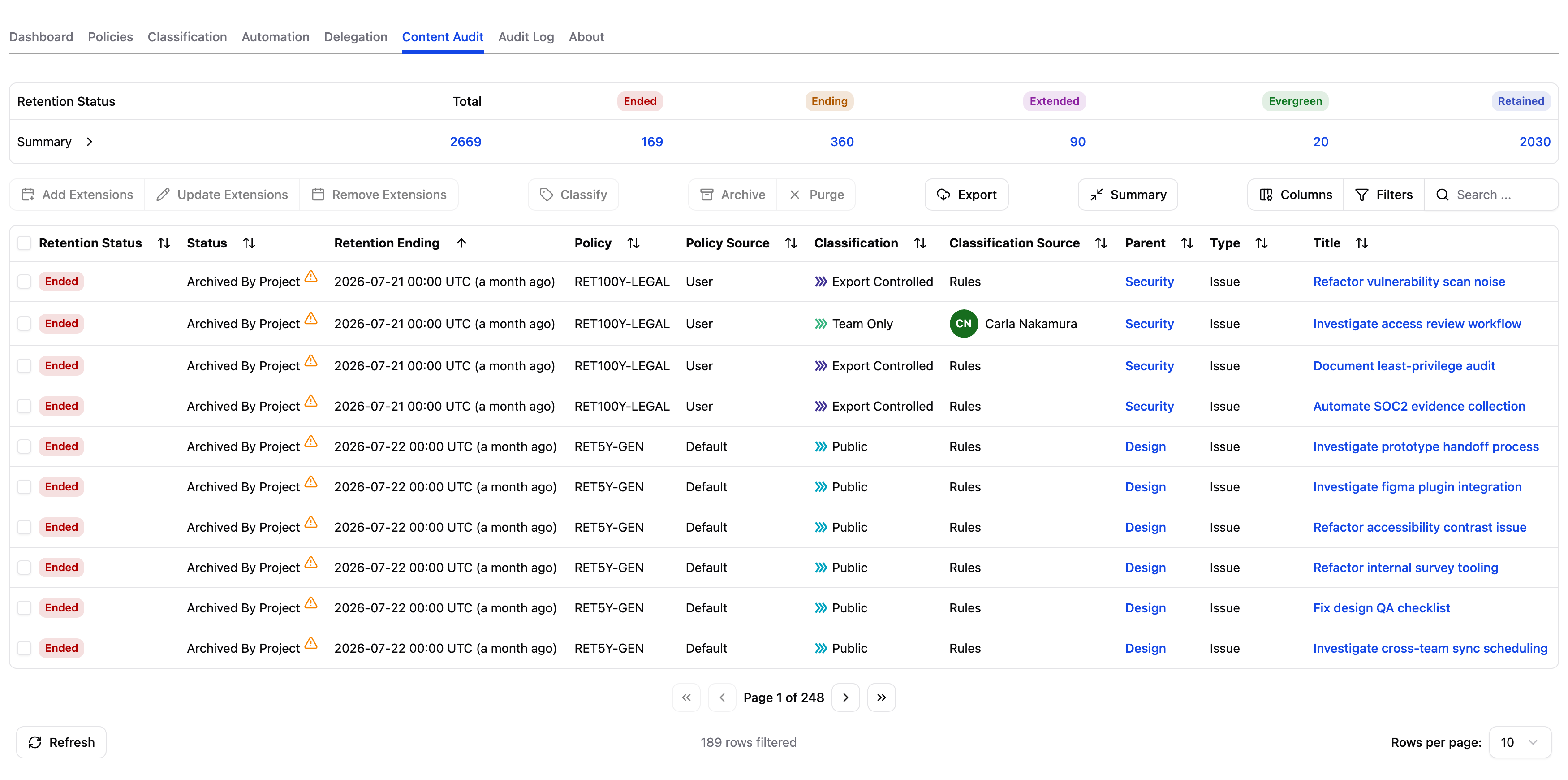
Content Audit table with Policy Source and Classification Source columns enabled
Filtering and Searching
With thousands of items in the audit table, you'll want to quickly find what matters. Use the filter buttons above the table to narrow by specific criteria, or Search for keyword matching across work item titles.
Four filters are pinned to the toolbar by default: Retention status, Status, Applied policy, and Classification level. Click More filters to add any of the others. Click a filter button to open its options, then check the values you want. Selections apply right away, so there's no separate Apply step:
- Retention status: Filter by Retained, Ending, Ended, Extended, or Evergreen. Start here if you're looking for content approaching or past its retention deadline.
- Status: Filter by Live, Archived, Archived By Jira Space, or Archived With Parent. Use this to find content that has been moved but not yet purged.
- Applied policy: Filter by the retention policy code (e.g., RET3Y-COMM) to see how a specific policy is affecting your content.
- Policy Source: Filter by which rule produced the applied policy: Default, Space, Classification, User, or Group.
- Classification level: Filter by sensitivity level (e.g., Internal, Confidential, Restricted) to audit whether sensitive content has the correct retention treatment.
- Classification source: Filter by Rules or User to distinguish between rule-inherited and user-set classifications.
- Flag: Filter by a specific flag, or by Not flagged, to find content that users have marked for attention. See Reviewing Flagged Content.
- Parent: Filter by space.
- Type: Filter by work item type.
- Owner: Filter by up to 50 specific content owners. Unlike the other filters, leaving this empty shows content regardless of owner.
Every filter also has an equals/not equals toggle in its options popup, so you can narrow to the values you check or exclude them instead. A filter added from More filters can be removed by clicking the x next to it; the four pinned filters stay on the toolbar, but you can reset everything at once with Clear filters, which appears whenever a filter is active.
Applied policy, Classification level, and Parent are each capped at 50 selections, matching Owner's existing limit. When a filter reaches its cap, the dropdown shows a Limit reached indicator and blocks further selections until you remove one.
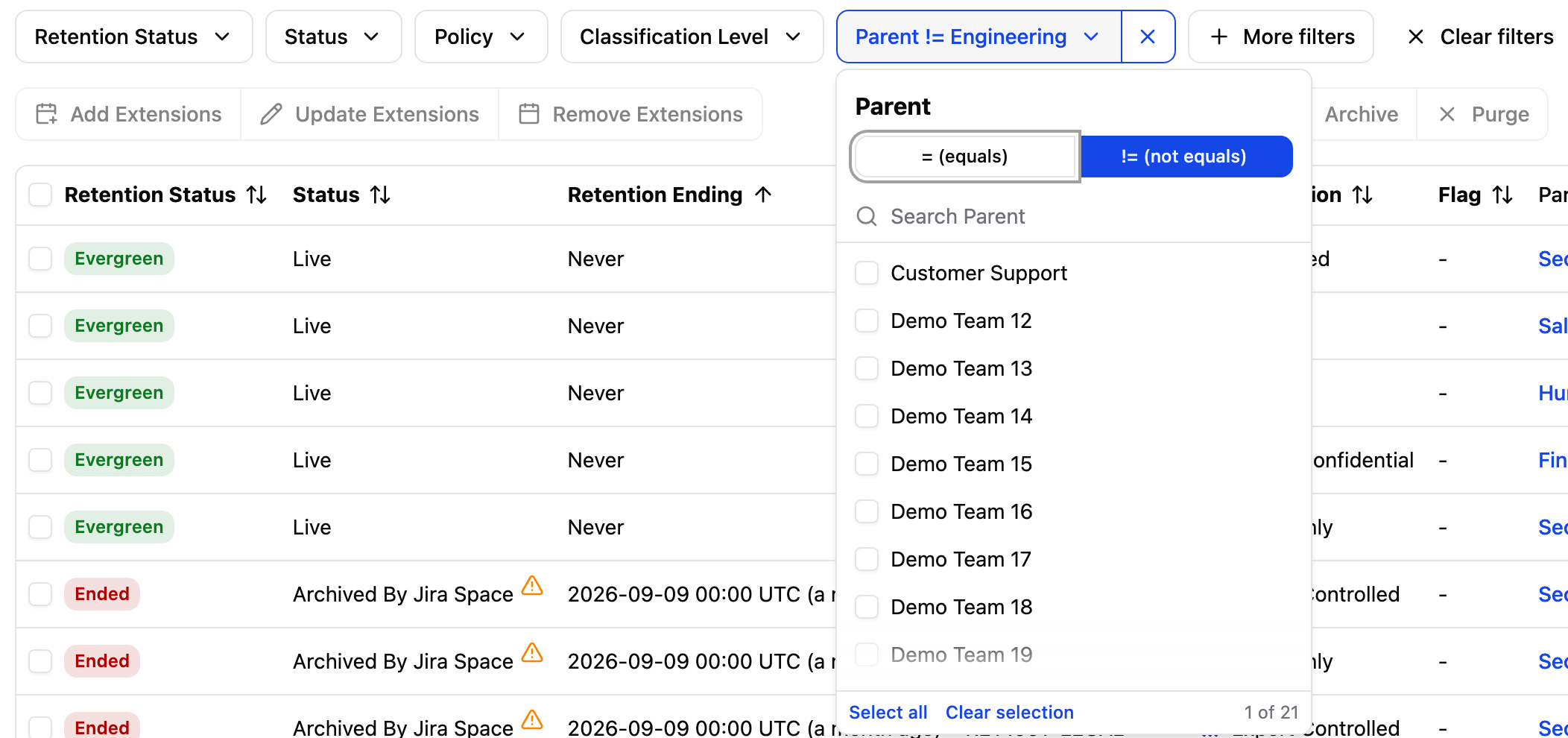
Filtering the Content Audit table by Parent
For keyword searches, use the Search box next to the filter toolbar. It matches your input against the text displayed in each row, including space names and work item titles, so you can quickly find specific work items without knowing their exact name.
Managing Extensions
Select one or more items and use the extension buttons to manage their retention periods:
- Add Extensions: extend the retention period for selected content. Two extension types are available: * Indefinite (evergreen): marks content so it never expires against a retention policy. * Extend to a specific date: sets an explicit future expiration date for the content.
- Update Extensions: modify the date or type of an existing extension on selected items.
- Remove Extensions: remove an extension, returning content to its policy-governed retention period.
Info
Extensions apply to individual items and take precedence over all policy settings, including retention rules.
Lite edition limits the total number of extensions to 100.
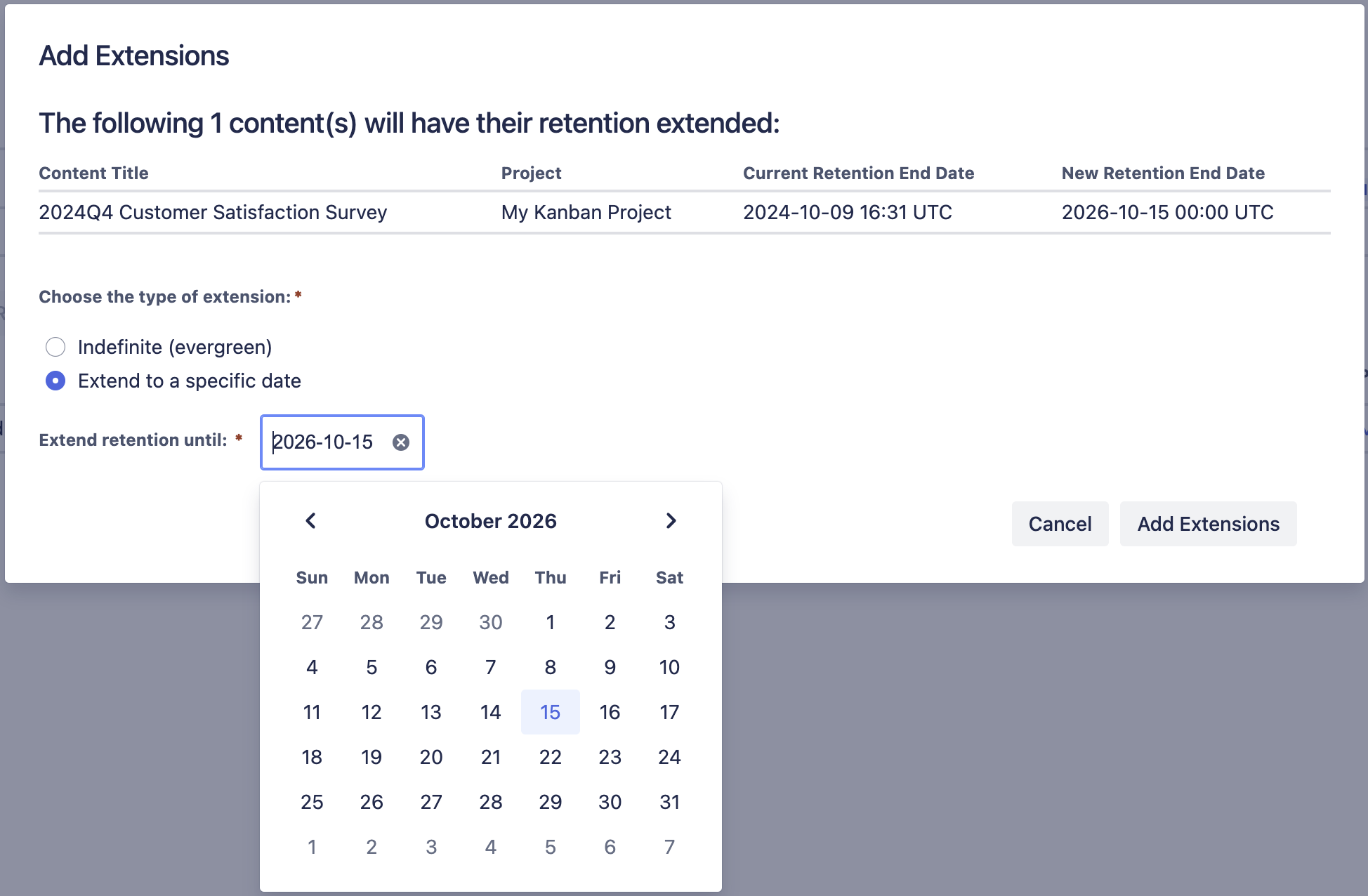
Extending a work item to a specific date
Classifying Content
This feature is not available in Lite edition of the app.
Select one or more items and click Classify to assign a classification level directly from the audit table. This is the bulk equivalent of the per-content classification feature available to users on individual work items. Like the per-content panel, it overrides classification rules per work item. Use this when your audit reveals items that are misclassified or not yet classified, and you want to correct them without opening each work item individually.
Archiving and Purging Manually
This feature is not available in Lite edition of the app.
Danger
Purging is irreversible. Content cannot be recovered after it has been purged.
Sub-tasks
Jira only archives a sub-task together with its parent work item, and only purges it together with the parent as well. A sub-task can't be archived or purged on its own, whether manually or through automation. If a sub-task's own retention comes due before its parent's, the Audit Log records a warning instead of taking action on it. Once its parent is archived, a sub-task shows the Archived With Parent status in the Content Audit table, and it's purged automatically whenever its parent is purged.
The Archive and Purge buttons let you act on specific items from the audit view, without waiting for automation.
- Archive: moves selected content to an archived state. Requires Jira Premium or Enterprise. Use this for content in Ending or Ended status that should be preserved but made inactive.
- Purge: permanently removes selected content from your Jira instance.
Each button opens a confirmation dialog listing the selected items before it proceeds.
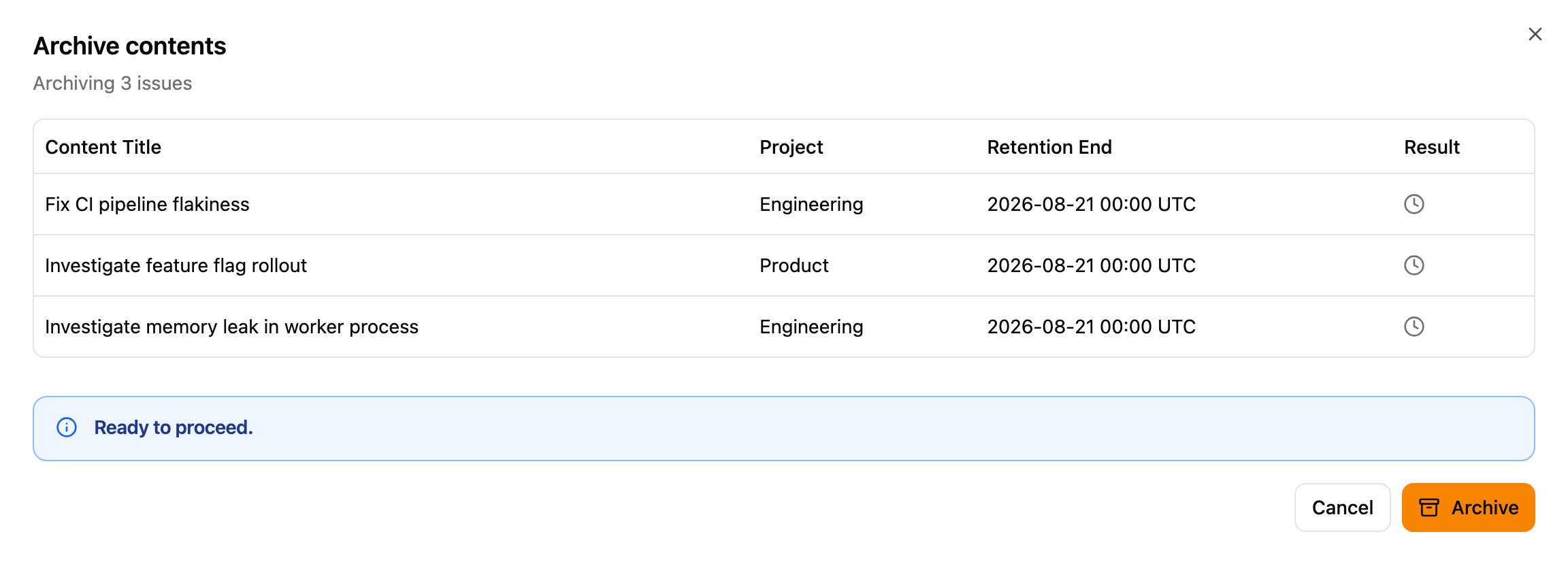
Archive contents confirmation dialog
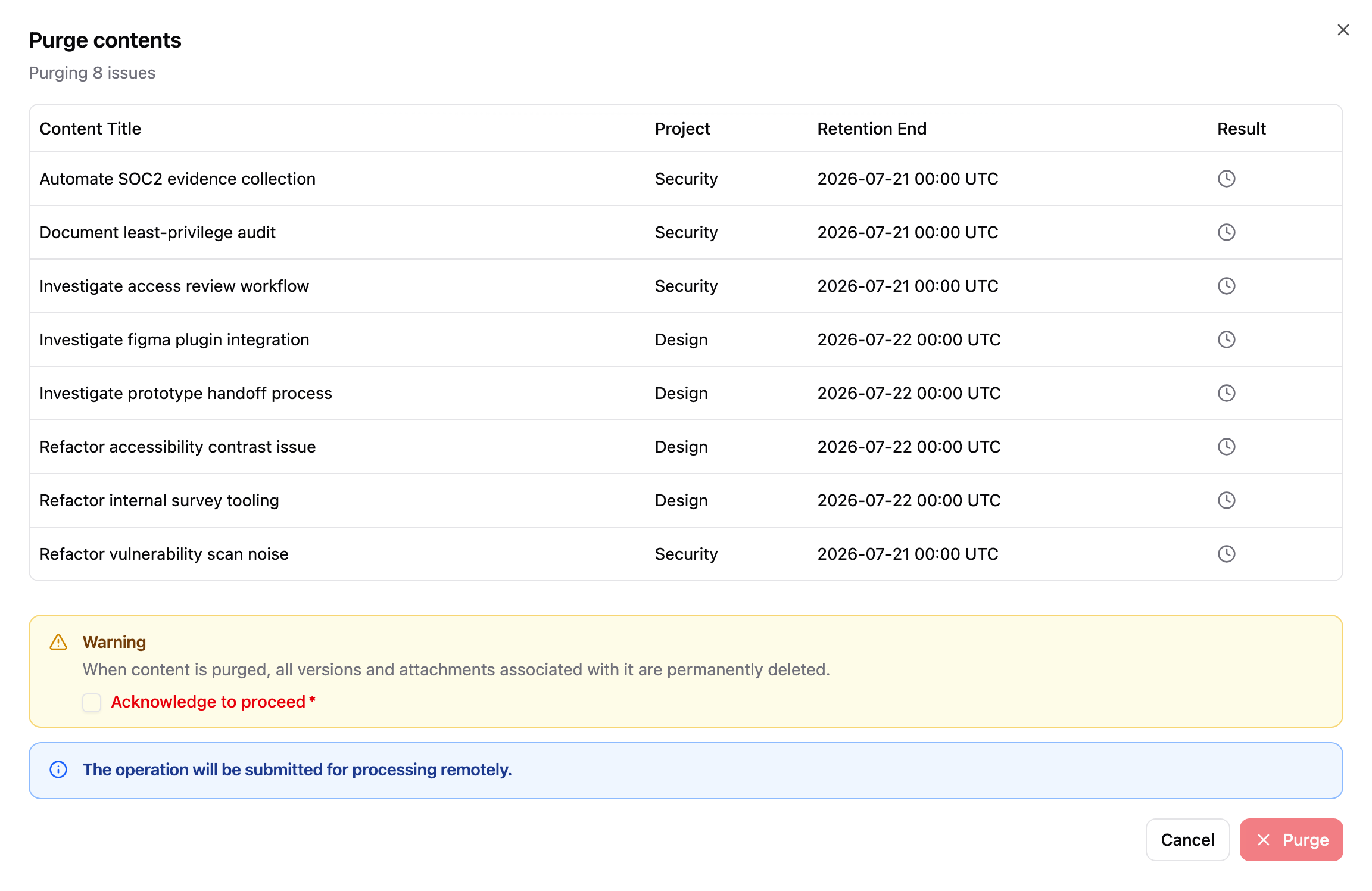
Purge contents confirmation dialog, requiring acknowledgment before proceeding
These are the manual counterparts to the automated archiving and purging configured on the Automation tab.
Reviewing Flagged Content
Use the Flag column and filter to work through content that users have marked for attention.
- In the Content Audit tab, click More filters and select Flag.
- Open the Flag filter, click Clear selection, then check the flags you want to review, such as Removal. All options start checked, including Not flagged.
- Hover over the icon in the Flag column to see the flag's name, its reason, who flagged the content, and when.
- Select the items you want to act on, then use the buttons described in Managing Extensions and Archiving and Purging Manually. For example, extend content that is still needed, or archive content that should go.
- To remove a flag without acting on the content, open the content from the Title column and clear the flag from its panel, as described in Clearing a Flag.
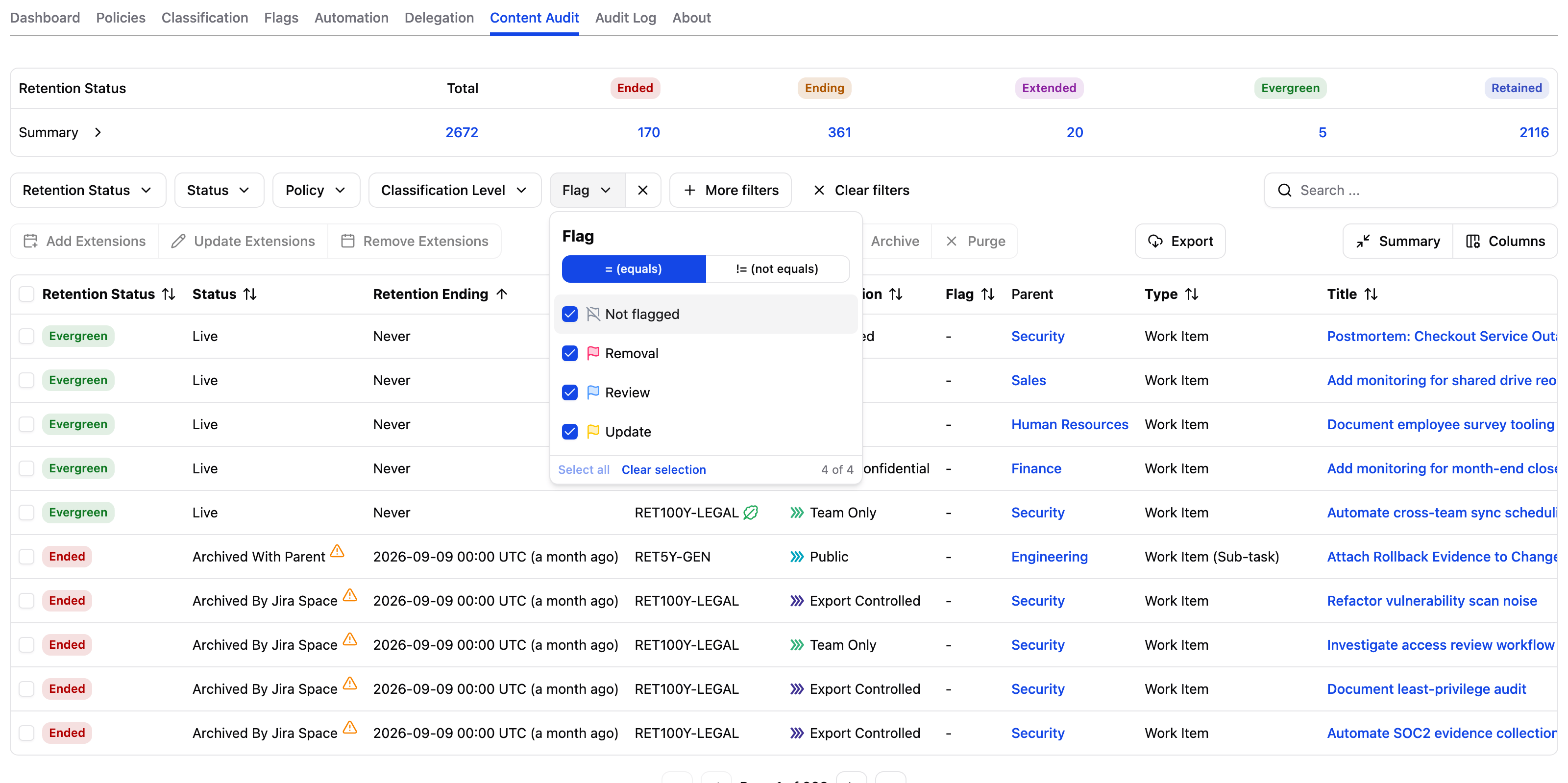
Filtering the Content Audit table by Flag
Non-admin users see the Flag column and filter only when Allow users to view flags and un-flag content is on.
Automation
This feature is not available in Lite edition of the app.
Use the Automation tab to configure two features: retention enforcement (archiving and purging) and audit log retention. Each feature operates independently and can be enabled or disabled without affecting the others.
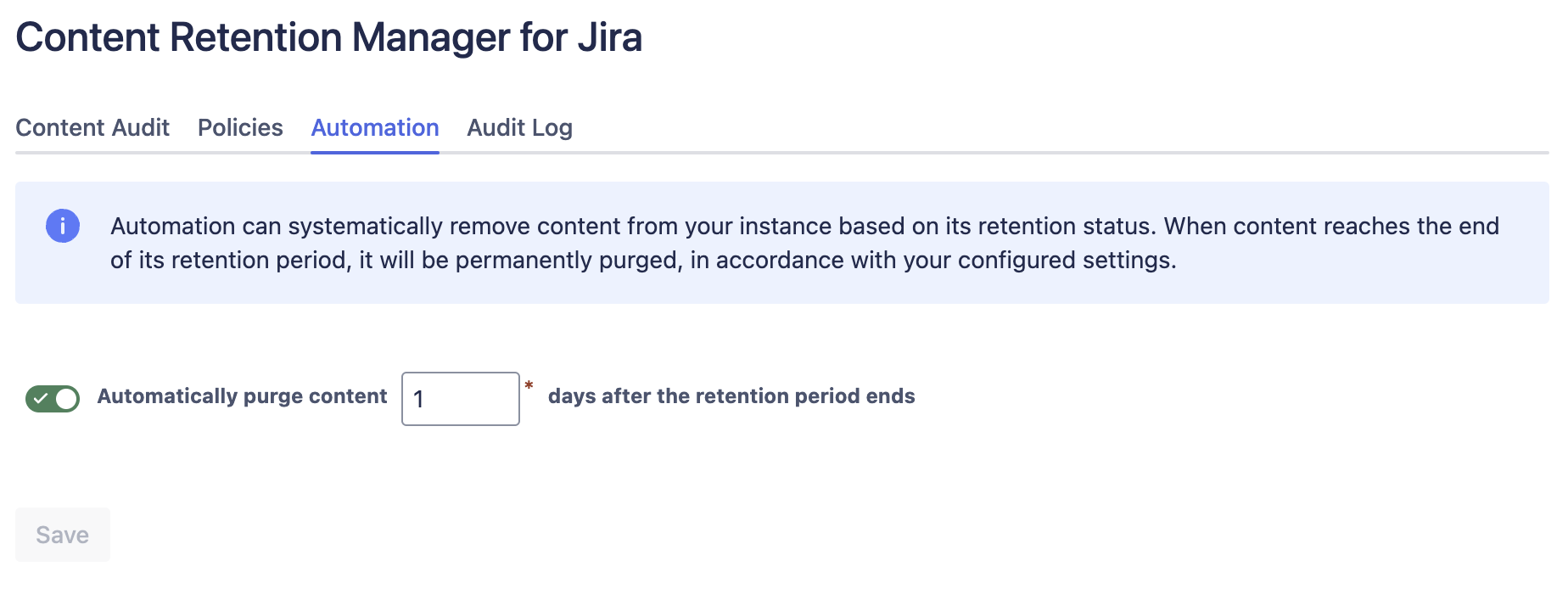
The Automation tab in Content Retention Manager for Jira
Retention Enforcement
Danger
Once automation is on, expired content will be archived or purged according to your policies. Purged content cannot be recovered.
Before enabling automation, complete a thorough review using the Content Audit tab. Verify that your retention policies and classification rules are producing the results you expect, update any rules that need adjustment, and apply extensions or per-content classification overrides for anything that needs special handling.
The Retention Enforcement section lets you schedule the retention lifecycle:
- Automatic archiving: When content enters the Ending status (during the configured warning period before retention ends), it can be automatically archived.
- Automatic purging: When content reaches the end of its retention period, it is purged after a configurable delay. Purged content is irrecoverable and no longer discoverable.
- Click the Automation tab.
- Under Retention Enforcement, enable Automatic archiving if you want content archived when it enters the Ending status.
- Enable Automatic purging if you want content permanently removed after the delay period.
- Set the Purge delay after the retention period ends (days). A few days provide a buffer in case content that should have been retained was not flagged in time.
- Click Save.
Jira sub-tasks are archived and purged along with their parent only. See Archiving and Purging Manually above.
Audit Log Retention
In the Automation tab overview above, locate the Audit Log Retention section to control automatic cleanup of old audit log entries:
- Toggle Audit log retention to ON.
- Set Retain audit logs for (days). The minimum is 30 days.
- Click Save.
When enabled, entries older than the configured period are automatically deleted. Disable this setting to keep all audit log entries indefinitely.
Troubleshooting Permissions
Jira automatically grants every installed app, including this one, an atlassian-addons-project-access Space Role. If you'd rather scope access to just this app, you can instead grant permissions and security levels directly to its own Content Retention Manager for Jira user. Either way, two independent layers of space configuration govern what the app can do: a space's permission scheme, which controls actions like deleting, archiving, or editing work items, and a work item security scheme, which can further restrict which individual work items are visible at all. A space can customize either layer independently of the other. See Atlassian's documentation on work item permissions and on granting users access to security levels in a work item security scheme for details on each.
When the app lacks access under either layer, whether granted to the atlassian-addons-project-access Space Role or directly to the Content Retention Manager for Jira user, Automation actions fail for the affected work items, recorded as errors in the Audit Log without any other warning. Check both proactively for any space with non-default configuration, particularly one created before installation.
Space Permissions
Most spaces use a shared, default permission scheme that already grants installed apps the access they need. But a space can use a customized scheme instead, one where permissions like deleting or archiving work items are restricted to specific space roles or groups. If neither the atlassian-addons-project-access Space Role nor the Content Retention Manager for Jira user is included in those permissions, the app's automation can't act on that space's work items even though it's fully installed and configured.
To check and fix this:
- In Jira, go to Space Settings > Permissions for the affected space.
- Check whether the Space Role atlassian-addons-project-access, or the Content Retention Manager for Jira single user, has been assigned to the following permissions: * Delete Issues (required for purge automation and bulk operation) * Archive Issues (required for archive automation and bulk operation, available on Jira Premium and Enterprise) * Edit Issues (required for per-content classification from Jira work item panel and bulk operation)
- Select the Actions dropdown menu in the upper-right corner of the permission scheme screen, then Edit Permissions to bring up the permission scheme edit screen.
- Select Update for the respective permission, then either check Space Role and choose atlassian-addons-project-access, or check Single user and choose Content Retention Manager for Jira.
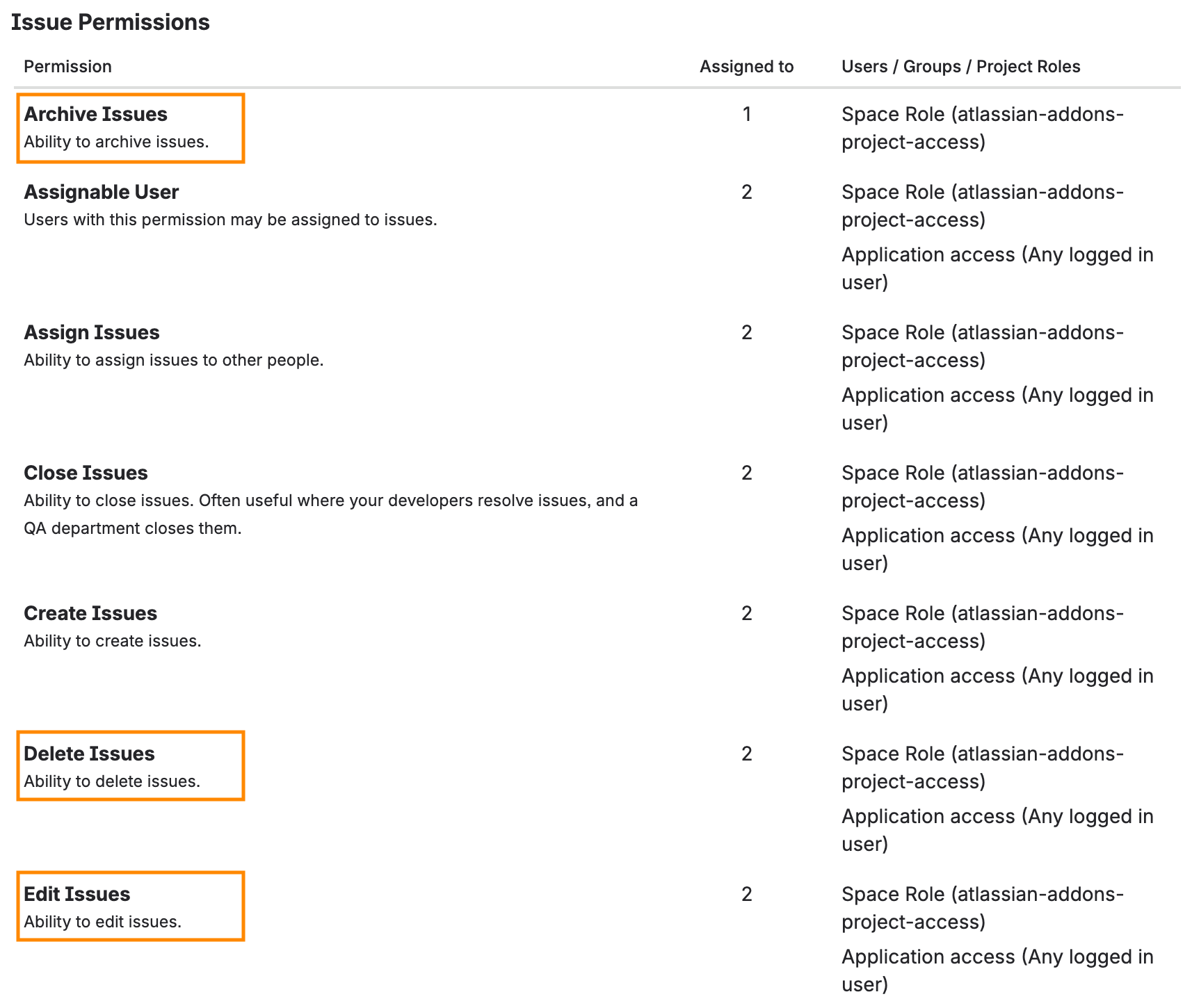
Issue permissions section in Jira Space Settings → Permissions
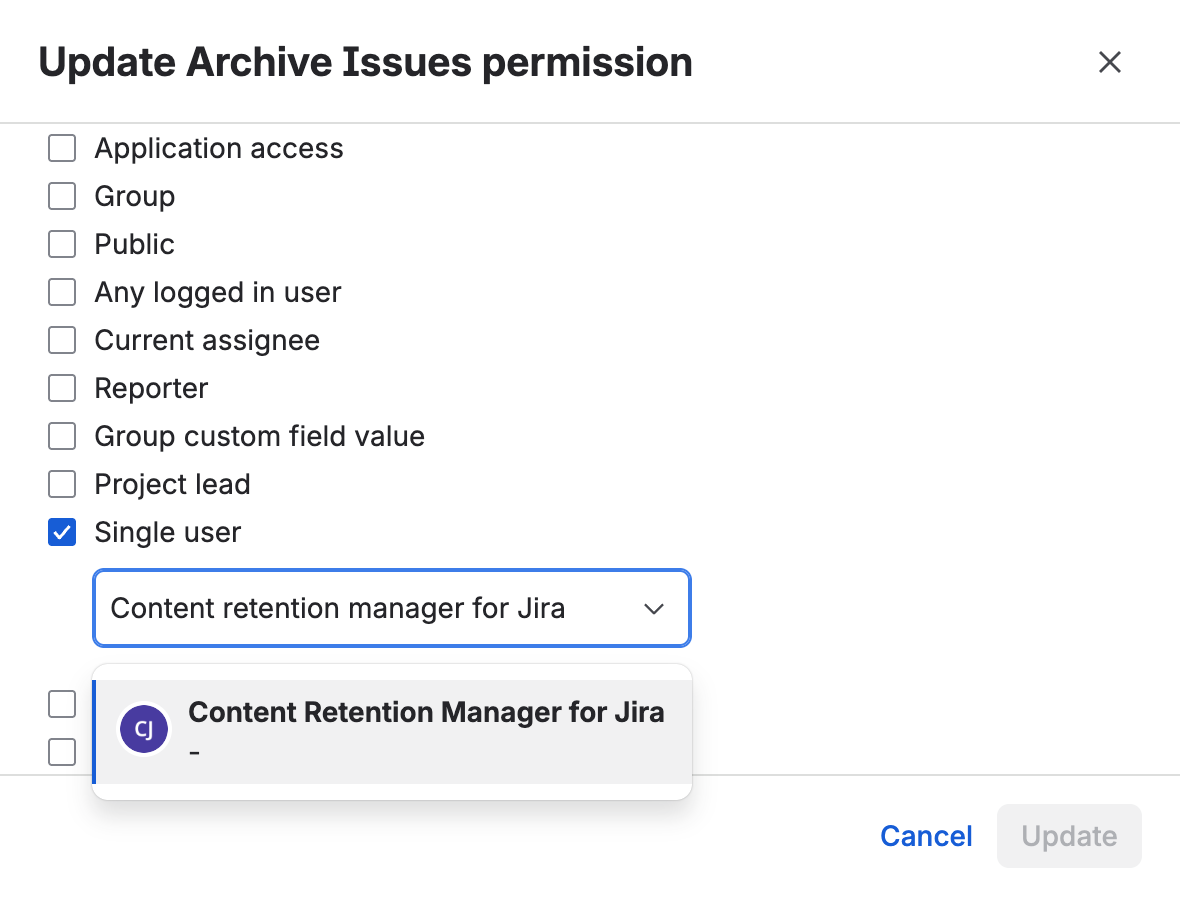
Granting Archive Issues to Content Retention Manager for Jira as a Single user
Work Item Security Levels
Some spaces layer a work item security scheme on top of the permission scheme. A work item assigned a security level is visible only to the users, groups, and roles granted access to that level, independently of what the permission scheme allows, so even a fully configured permission scheme won't help if a security level excludes both the atlassian-addons-project-access Space Role and the Content Retention Manager for Jira user. See Atlassian's documentation on changing which work item security scheme a space uses if you need to find or switch the scheme applied to a space.
To check and fix this:
- In the space, go to Space Settings > Work items > Security to see which work item security scheme the space uses.
- Open that scheme to view its security levels.
- For each security level that should include the app, select Add in the Actions column.
- Choose Space Role and select atlassian-addons-project-access, or choose Single user and select Content Retention Manager for Jira, then select Add to grant access.
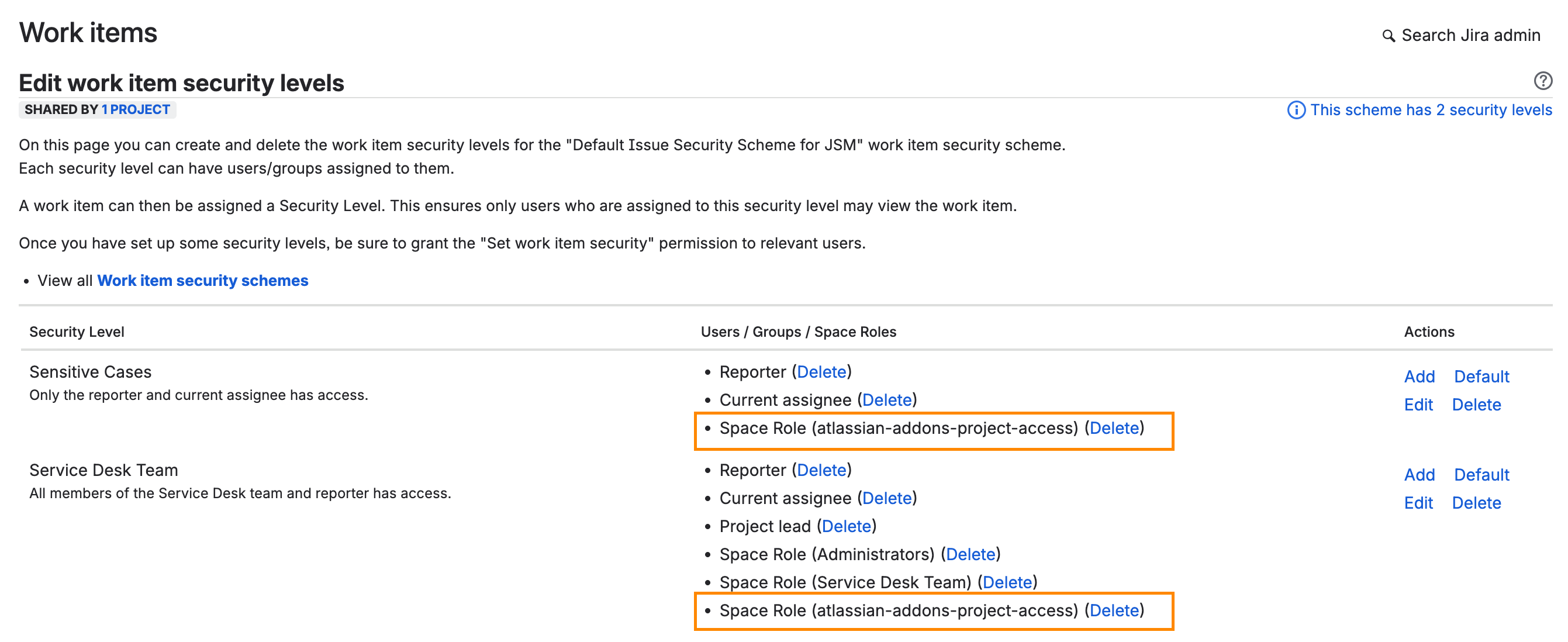
Edit work item security levels page, granting atlassian-addons-project-access access to a security level
Delegation
This feature is not available in Lite edition of the app.
Delegation allows you to share Content Retention Manager admin access with users who don't hold the Jira Admin role. Members of delegated groups can create and manage retention policies and classification levels, including policies that govern content they cannot delete in Jira. Delegate only to trusted users who understand your organization's retention policies.
There are a few key differences between a Jira admin and a delegated admin:
- Only a Jira admin can modify delegation settings. A delegated admin can view but cannot change these settings.
- Adding a user as a delegated admin does not alter their Jira permissions. In the Content Audit tab, a delegated admin can only see content they have read access to in Jira, and can only use the Purge button on content they could delete in Jira. However, by modifying policies, classification rules, and definitions, or by enabling automation, a delegated admin can affect the retention and classification of all content on the site, including content they cannot directly access.
To review and modify the delegation, click the Delegation tab.
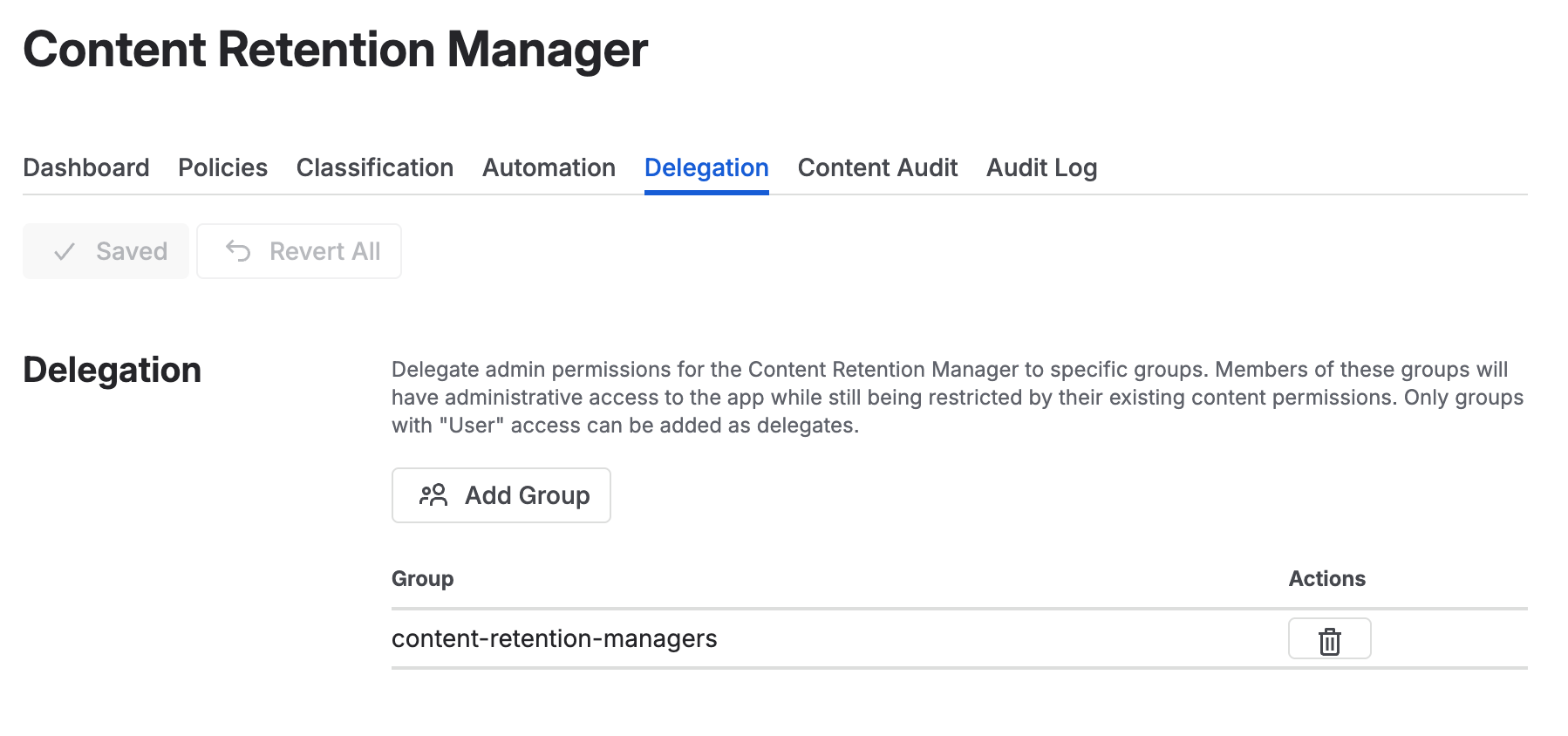
Delegation tab in Content Retention Manager for Jira
To add groups:
- Click the Add Groups button above the table.
- In the dialog, select the groups to delegate to. Only groups with the User access type (non-admin groups) are shown.
- Acknowledge the warning and click Add Group to confirm.
- Click Save to apply your changes.
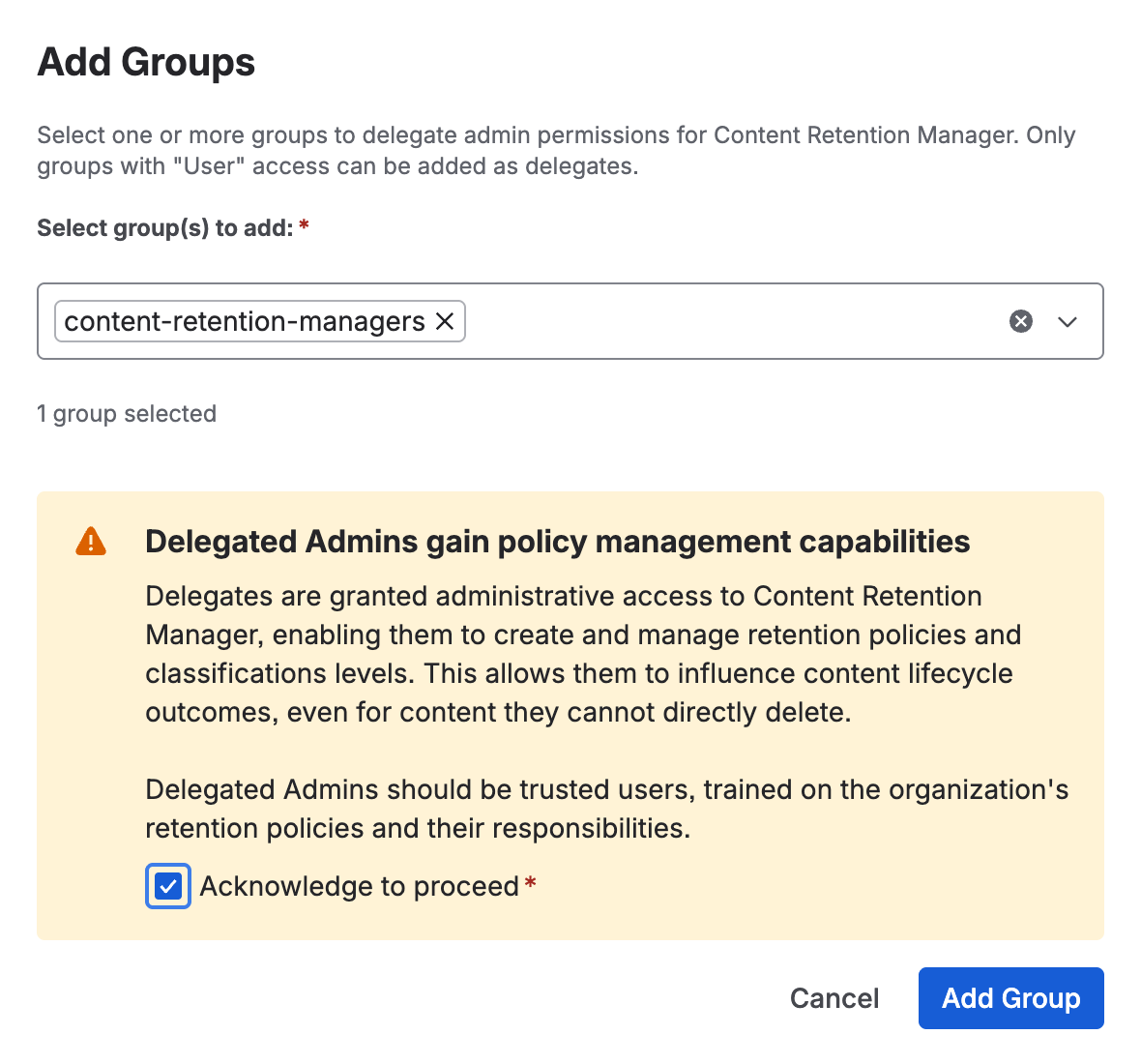
Add groups as admin delegates in Content Retention Manager
Audit Log
The audit log is a permanent record showing who set or updated a policy, defined an extension, or archived or purged content, and when. It also records flag changes, including a flag cleared automatically after an edit. If a work item is archived or purged by automation, it appears in the log. The log records content by ID only, not the content itself.
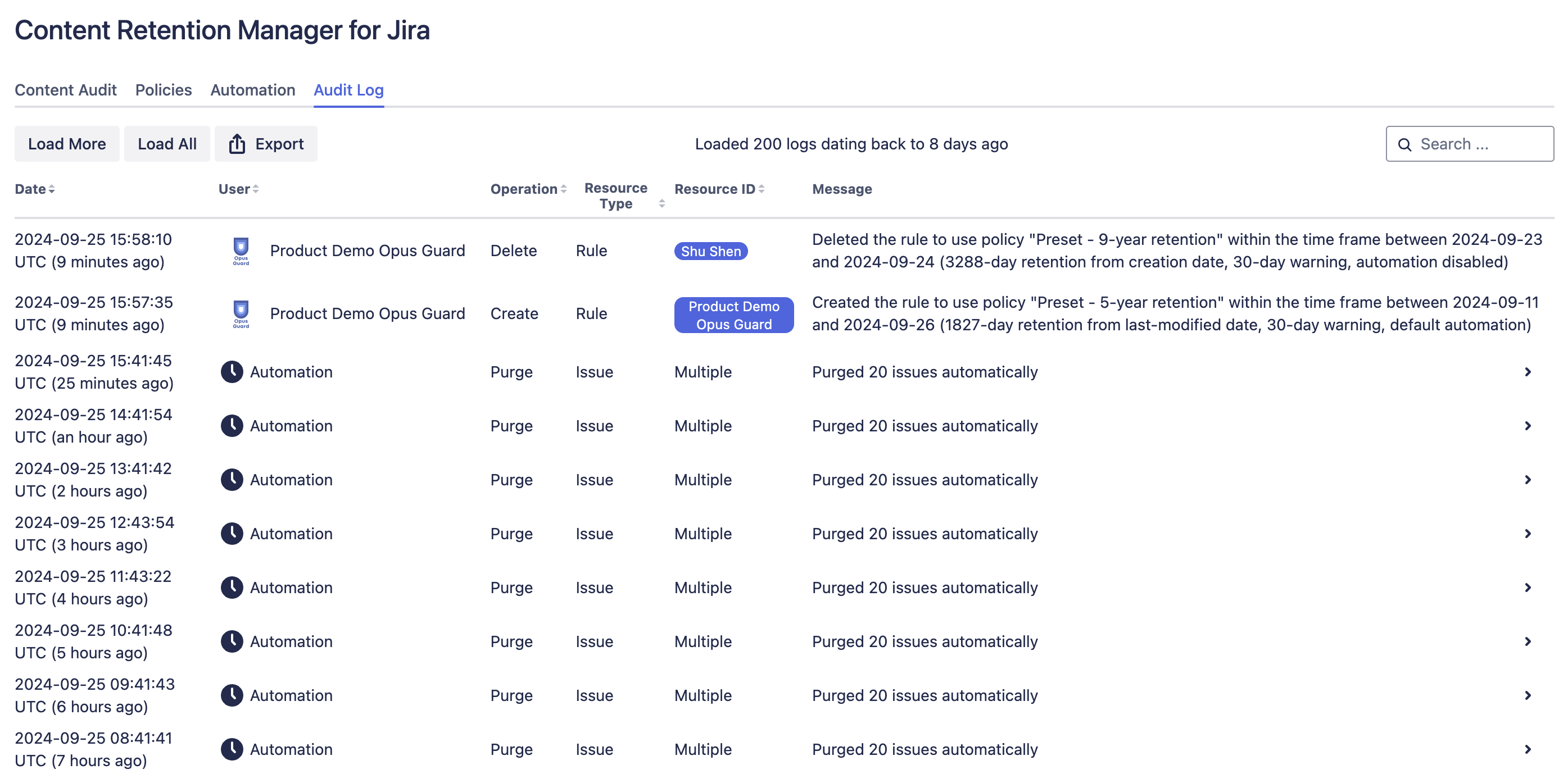
Example Audit Log in Content Retention Manager for Jira
About
The About tab provides a quick reference for your installed version and links to helpful resources. It displays the app name and version number (e.g., v4.7.0). Use this version number when contacting support so the team can assist you more effectively.
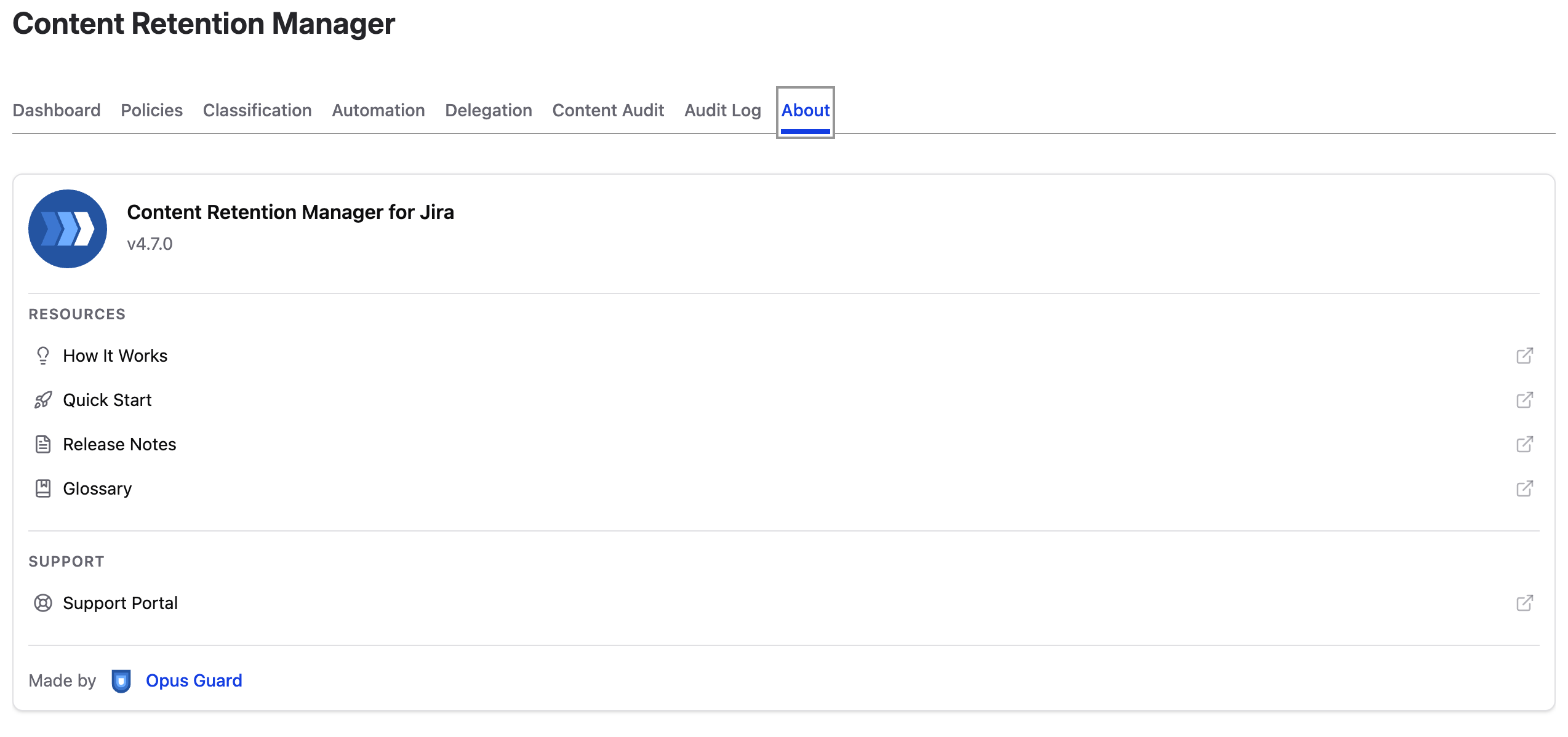
About tab in Content Retention Manager for Jira
Under Resources, you'll find links to documentation hosted on this site:
- How It Works: Overview of how Content Retention Manager works under the hood.
- Quick Start: Step-by-step guide to get up and running quickly.
- Release Notes: Changelog for all past and current releases.
- Glossary: Definitions of key terms used throughout the documentation.
Under Support, you'll find a link to the Opus Guard Support Portal where you can submit tickets or browse existing knowledge base articles.
Under Feedback, you'll find a link to rate Content Retention Manager on the Atlassian Marketplace.